

MCP Server
You need to raise prices twenty percent on everything red, but only the products that actually sell, and not the ones already discounted. In the admin that means a filter, a careful look at what it caught, a bulk operation, and a prayer that you didn’t select the whole catalogue by mistake.
BEAR now ships an MCP server. Connect an AI assistant to your WooCommerce shop once and that request becomes a sentence — with a preview before anything is written and a rollback if it wasn’t what you meant.
You don’t have to open your site at all.
Bulk edit, analyse and export — in one conversation
BEAR has always been a WooCommerce bulk editor, and that is still the point. The connection adds two neighbours to it.
Bulk edit WooCommerce products
Filter and change, in the same breath. Raise prices 20% on everything red. Set stock to 50 for the Accessories category. Put the Sale category 30% off from Friday to Sunday. Publish all the drafts with a price. Delete the products that stopped selling last season.
Every one of those is a filter plus a bulk operation, the same two steps you already do by hand. What changes is that you describe them instead of clicking them, and that BEAR checks your work before it writes.
The filter is the whole of BEAR’s filter, not a shortlist. Any product field, any attribute, any category or tag, custom taxonomies, your own meta fields, price and date ranges, stock status, product type, author — and combinations of them. Everything under 20 euros in Accessories that has no image. Drafts created before June with a price set. Variable products whose variations are out of stock. If you can describe it, it goes into the same filter engine the editor screen uses, so the result is exactly what you would have got by clicking.
Understand what your shop is doing
Questions the editor screen was never meant to answer. What sold best last season? Which month was the worst? Which variation moves fastest — and which one keeps coming back? How many days of stock do I have left at the current rate? Which promo code is eating my margin?
Export WooCommerce products to CSV
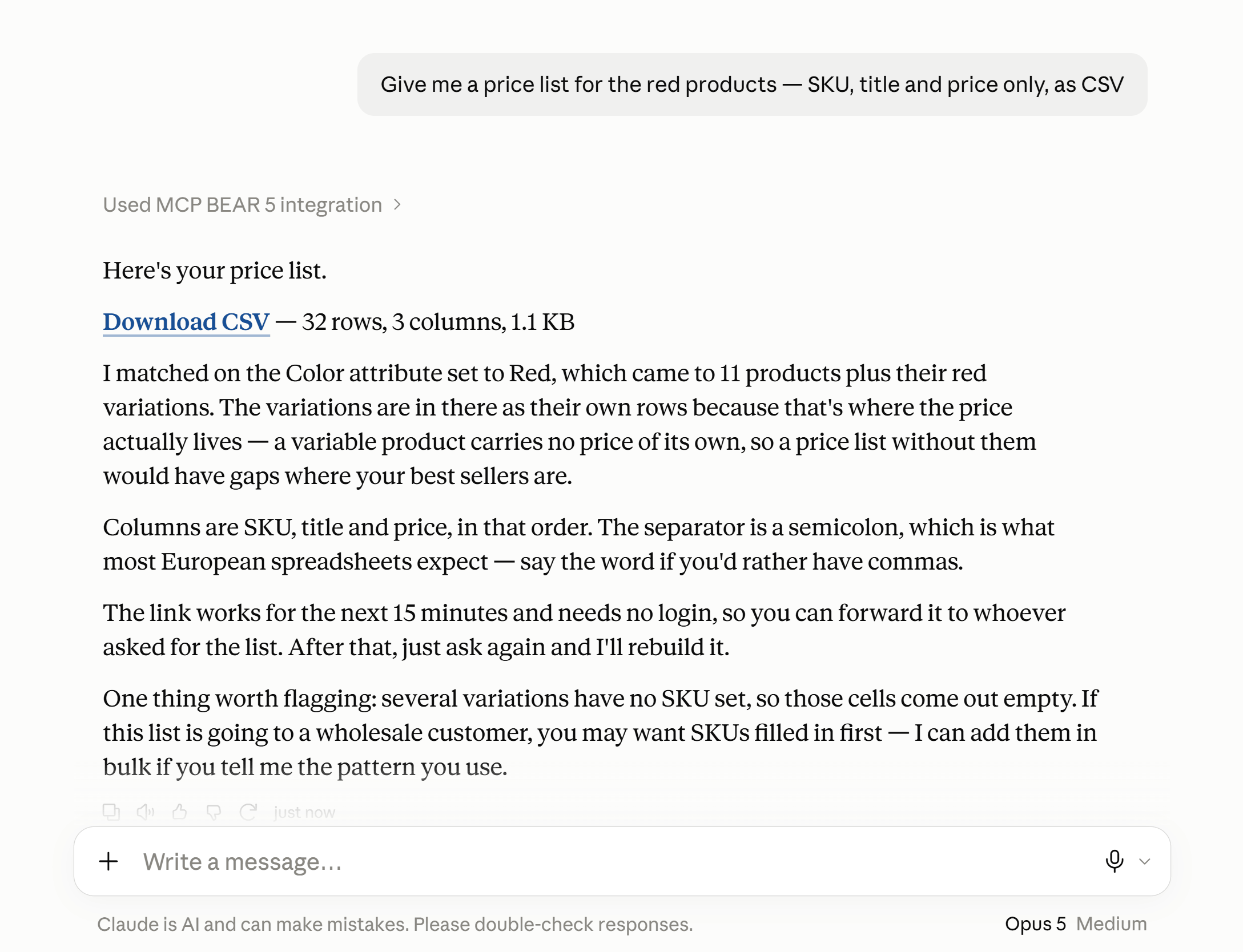
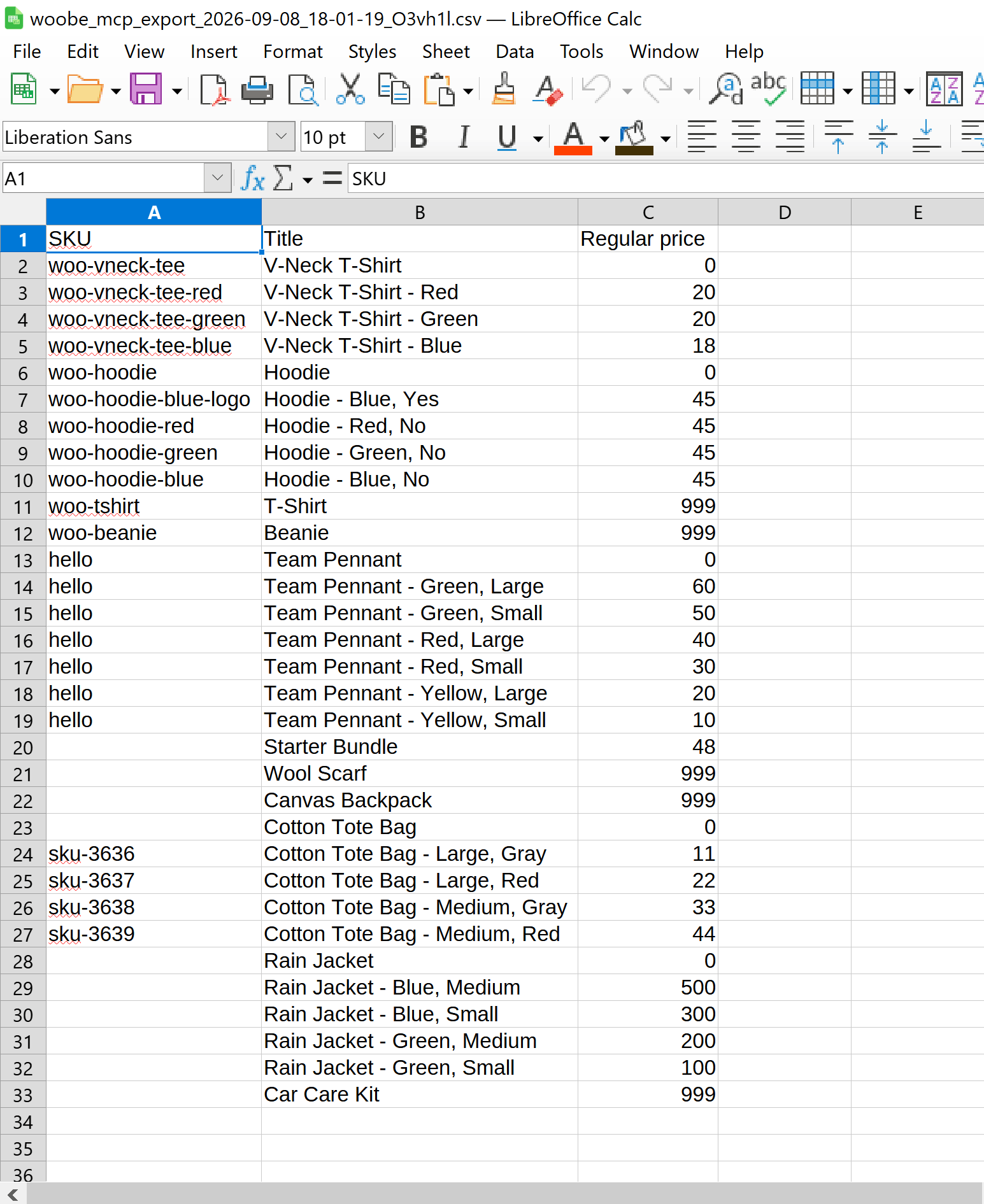
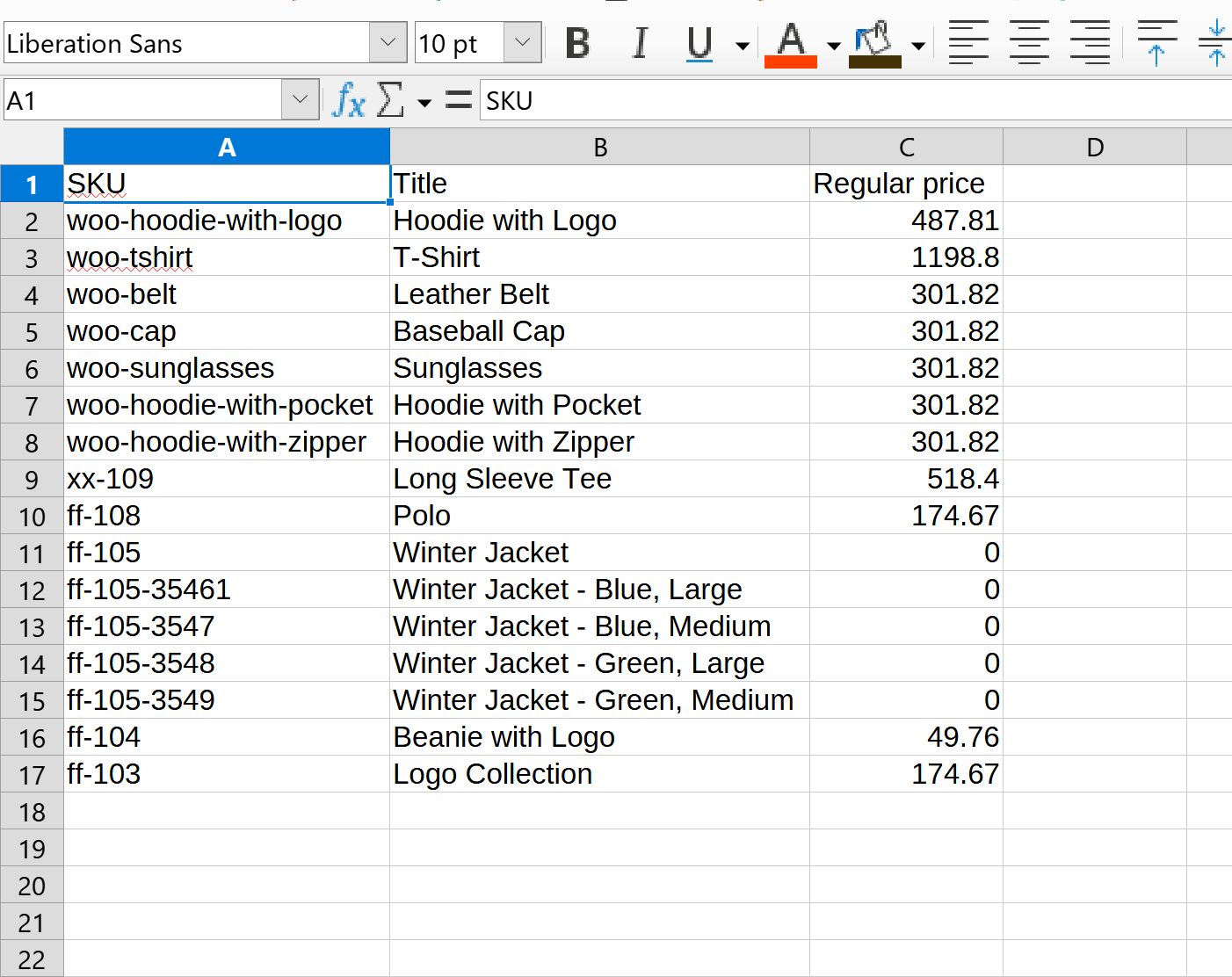
A CSV of whatever you just found, with the columns you want in the order you want them. A price list for a wholesale customer, an inventory sheet for the warehouse, a file for WooCommerce’s own importer. Export the red products, just SKU, title and price.
What an MCP server is, briefly
Model Context Protocol is an open standard for connecting AI assistants to software they don’t own. It belongs to no single vendor, and BEAR’s implementation is tied to none.
What that means for you: you paste one address and one key into your assistant’s settings and it can work with your shop. Nothing is installed on their side, nothing is built, and your data doesn’t travel through a third party — the assistant talks to your server directly.
Which AI assistants can connect to WooCommerce
- Claude — in the browser, in the desktop app, and in Claude Code
- ChatGPT — with developer mode enabled
- Cursor, Windsurf, Zed and other coding assistants
- Your own agent — anything that speaks MCP, including something you wrote yourself
Assistants that can render HTML will draw charts and tables in the conversation. The ones that can’t give you the same numbers as text, which is a difference in presentation and nothing else.
How to connect an AI assistant to your WooCommerce shop
Two pieces of information, both on one screen.
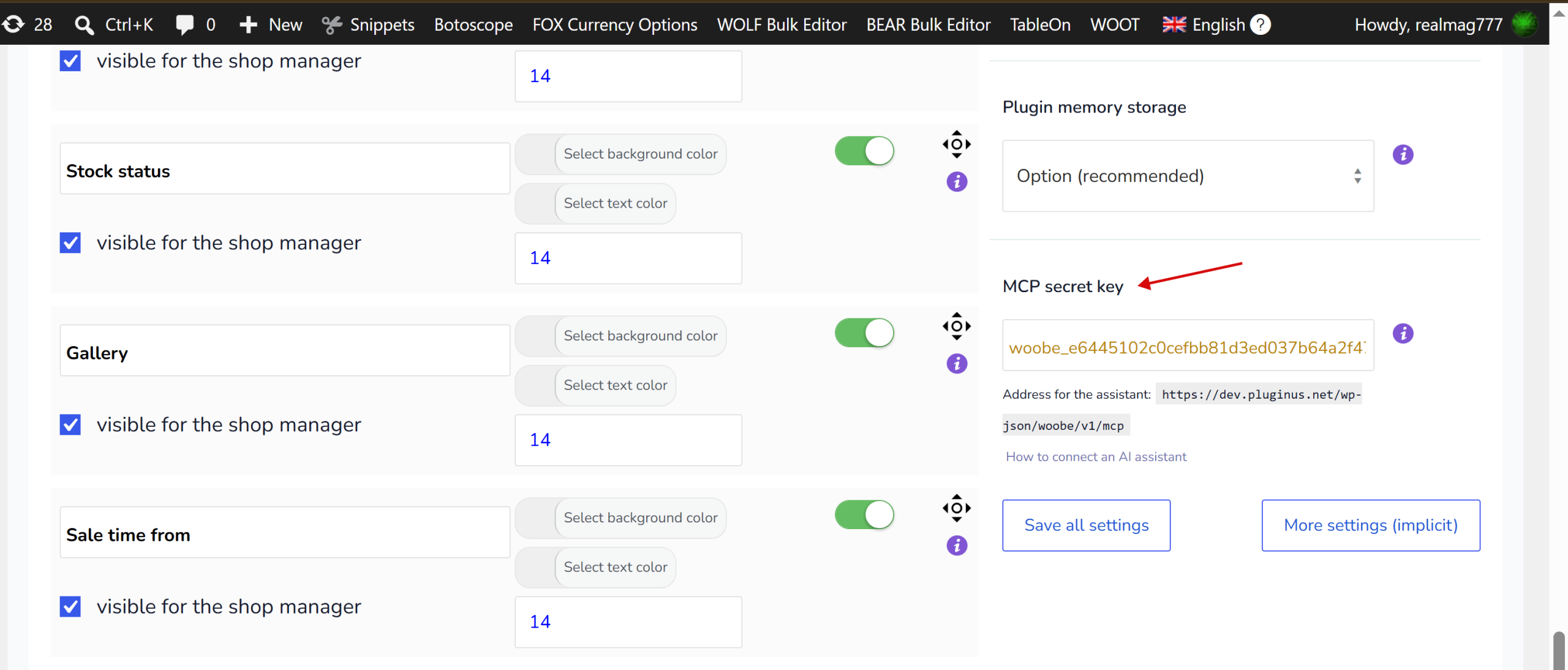
Find your MCP key in BEAR
Open Products → BEAR Bulk Editor → Settings and scroll to MCP secret key. A key is generated the first time you look at that page. Underneath it is the address of your shop’s endpoint, something like https://yourshop.com/wp-json/woobe/v1/mcp.
Add the connector in Claude
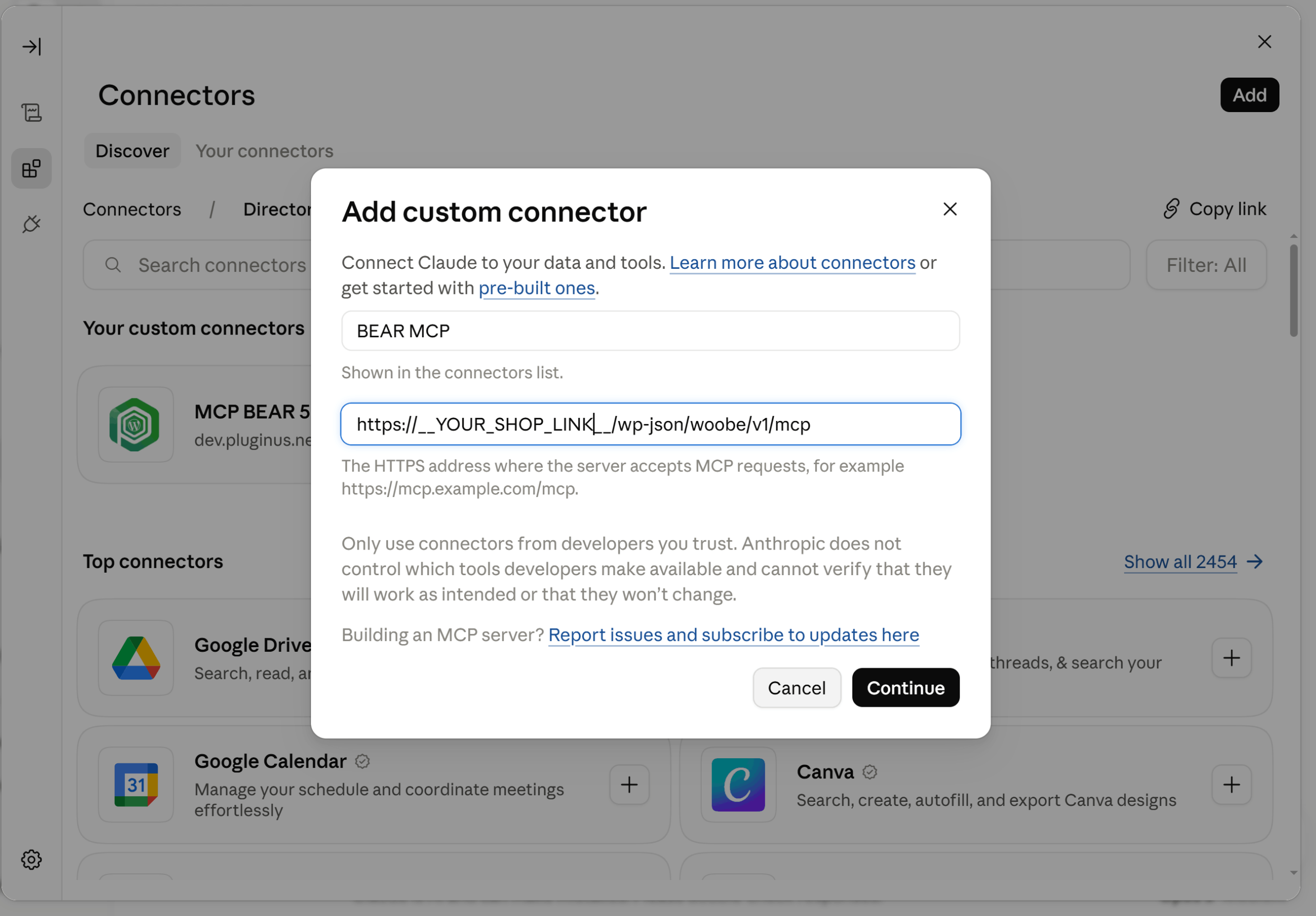
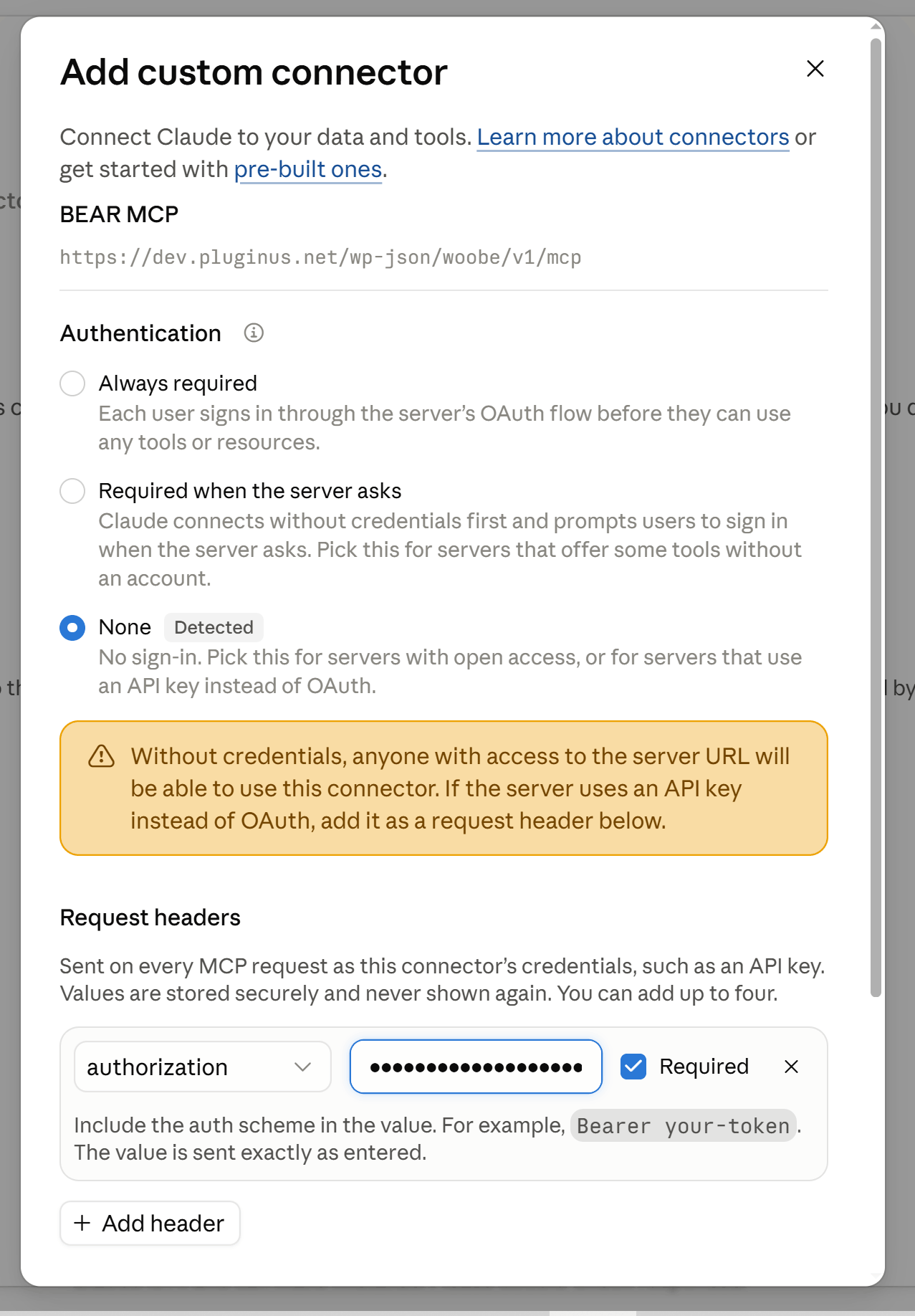
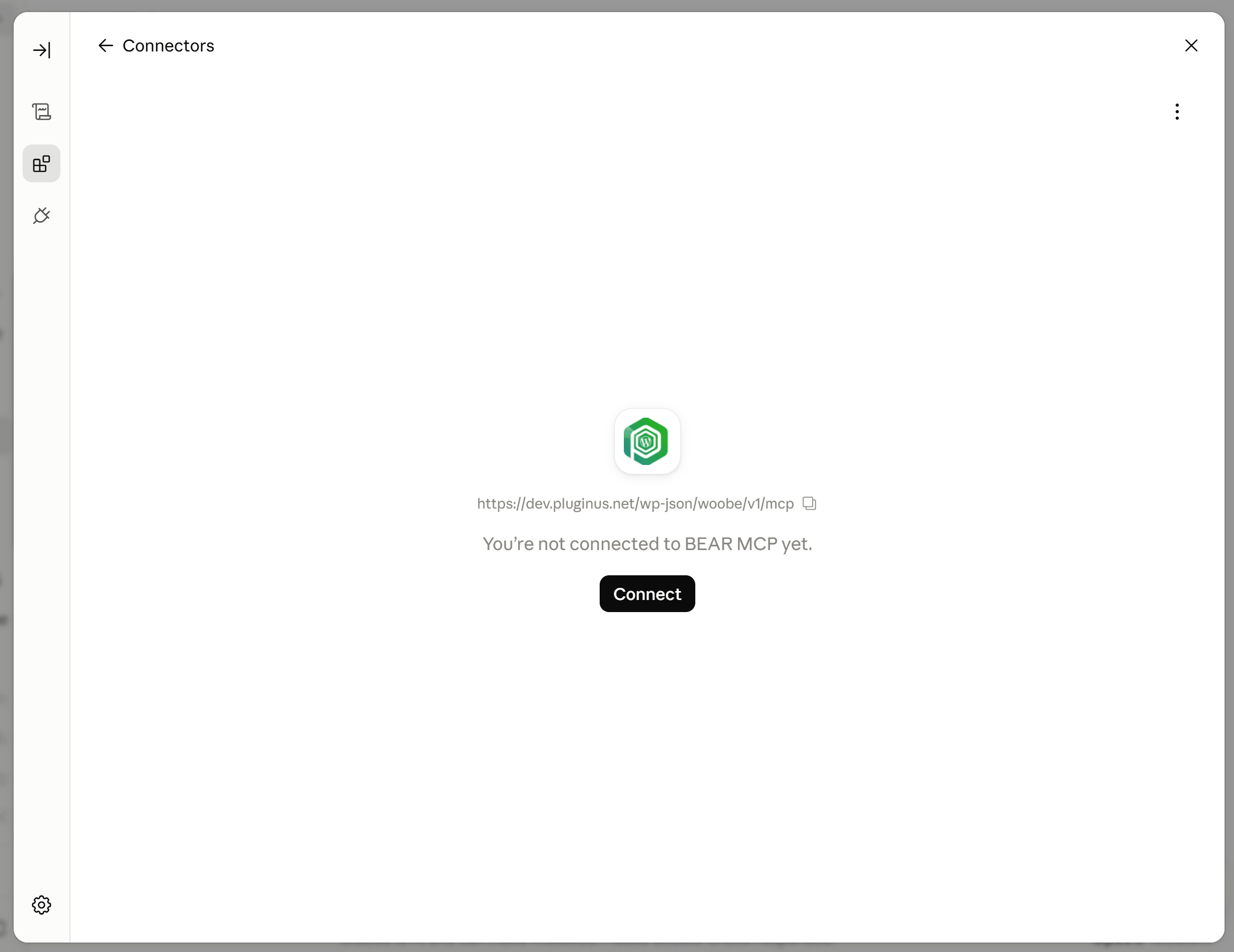
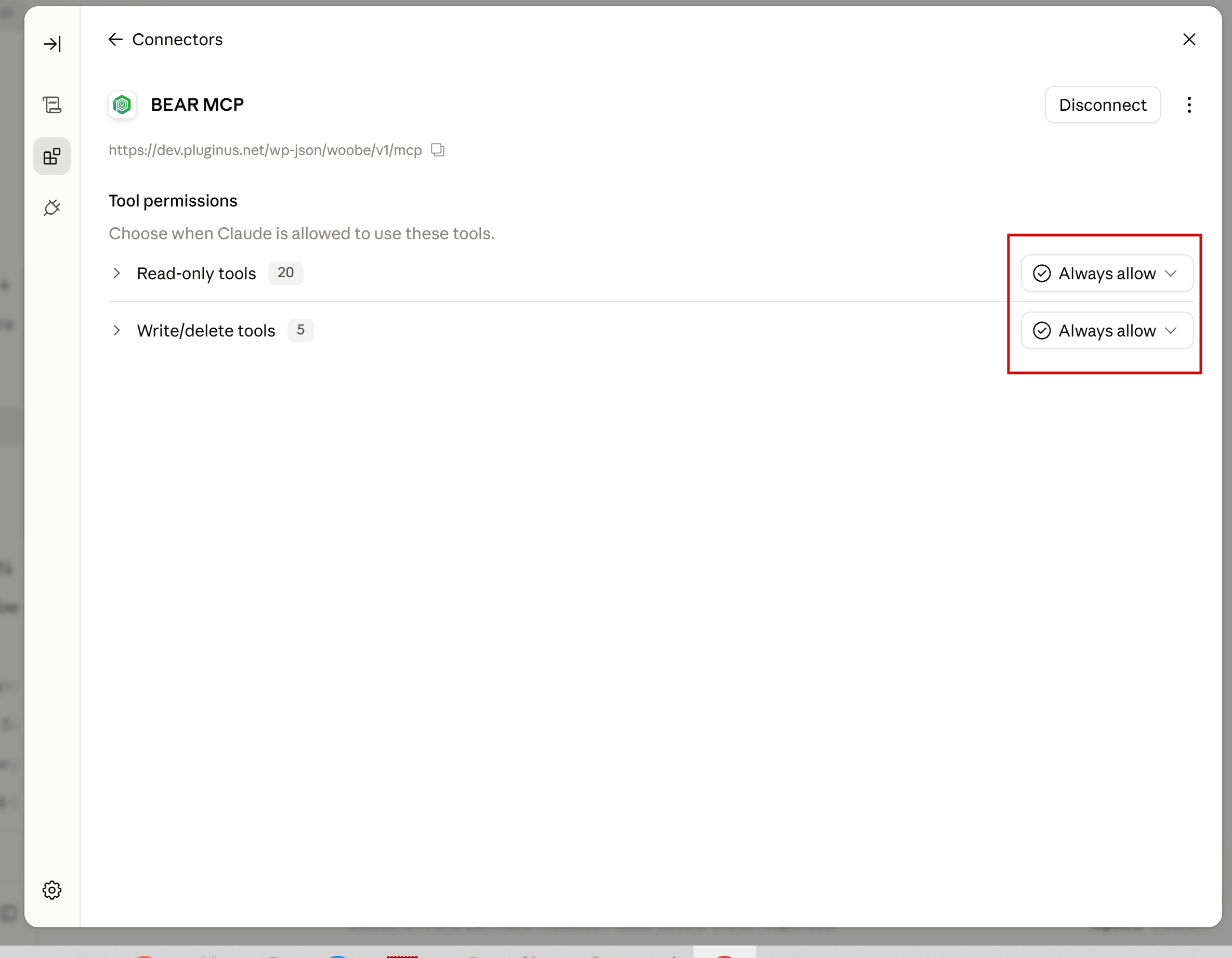
In Claude: Settings → Customize -> Connectors → Add. Paste the address. Under Authentication choose None — the wording is unhelpful but the description is right: that option covers servers using an API key rather than a sign-in flow. Then add a request header:
- Header name:
Authorization - Value:
Bearer, a space, then your key
In Claude Code it’s one line:
claude mcp add --transport http bear https://yourshop.com/wp-json/woobe/v1/mcp \
  --header "Authorization: Bearer YOUR_KEY"
Other clients word it differently but want the same two things: the address, and a header carrying the key.
Why the key never goes in the address
Some integrations let you paste a URL with the key inside it. BEAR refuses those. Anything written into a URL ends up in your server’s access log, in browser history, in the Referer header when someone follows a link out, and in every proxy along the way. A header appears in none of them.
Lost the key? Clear the field, press Save, and BEAR issues a new one. The old key stops working immediately.
Examples: managing a WooCommerce shop by chat
These are real exchanges, not marketing copy. The numbers are from a small test shop.
Bulk edit prices: a seasonal price rise
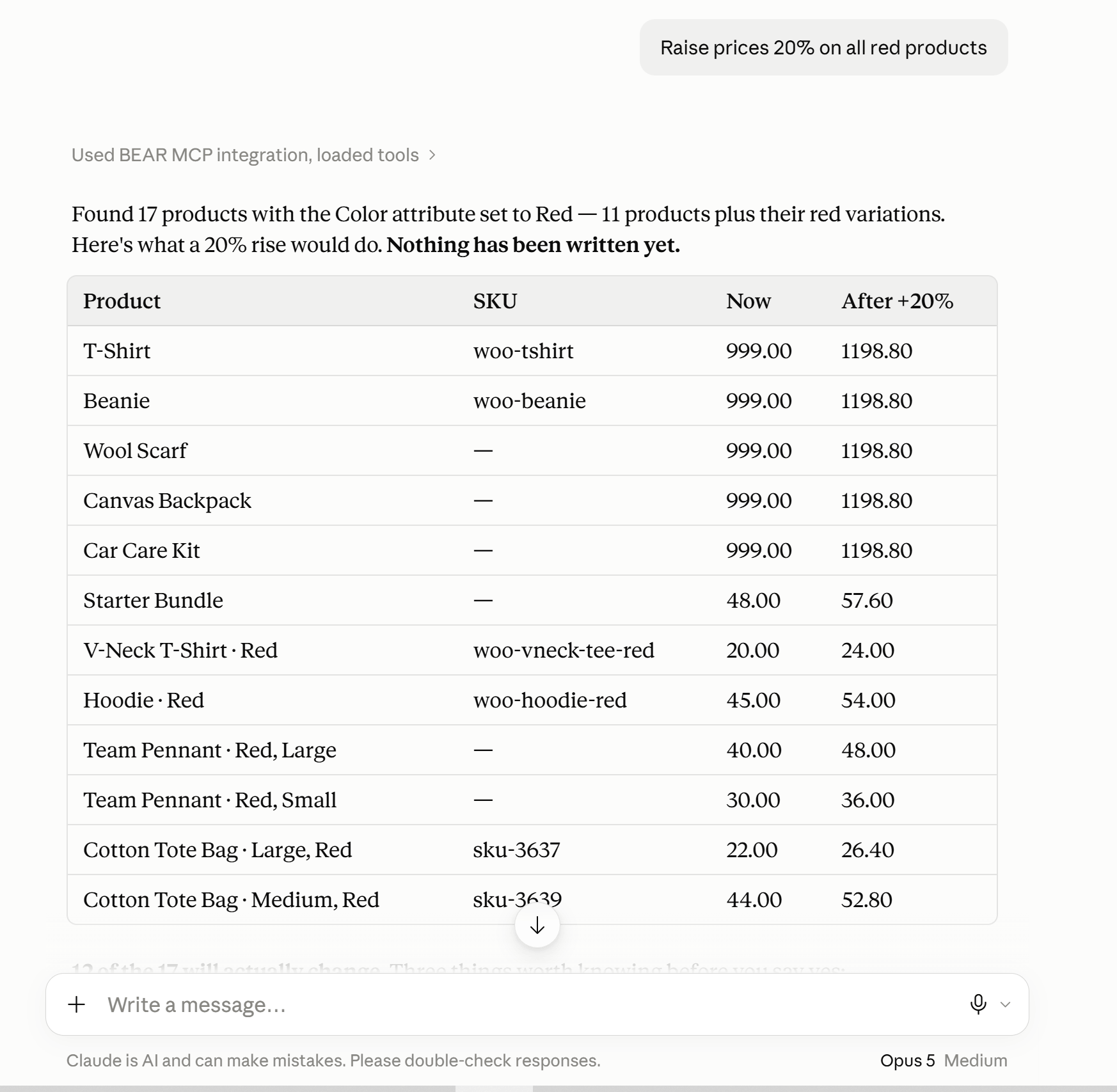
Raise prices 20% on everything red.
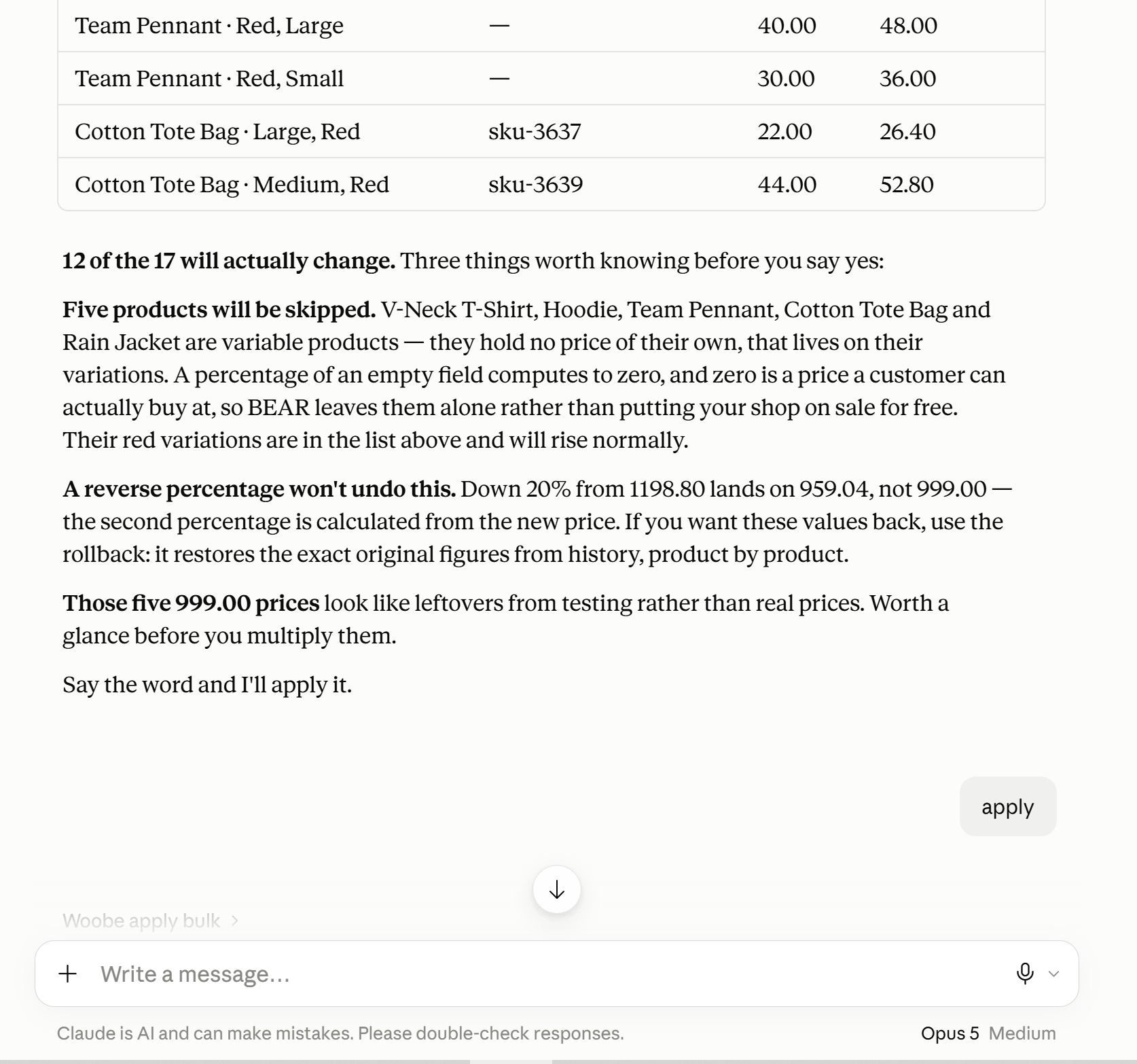
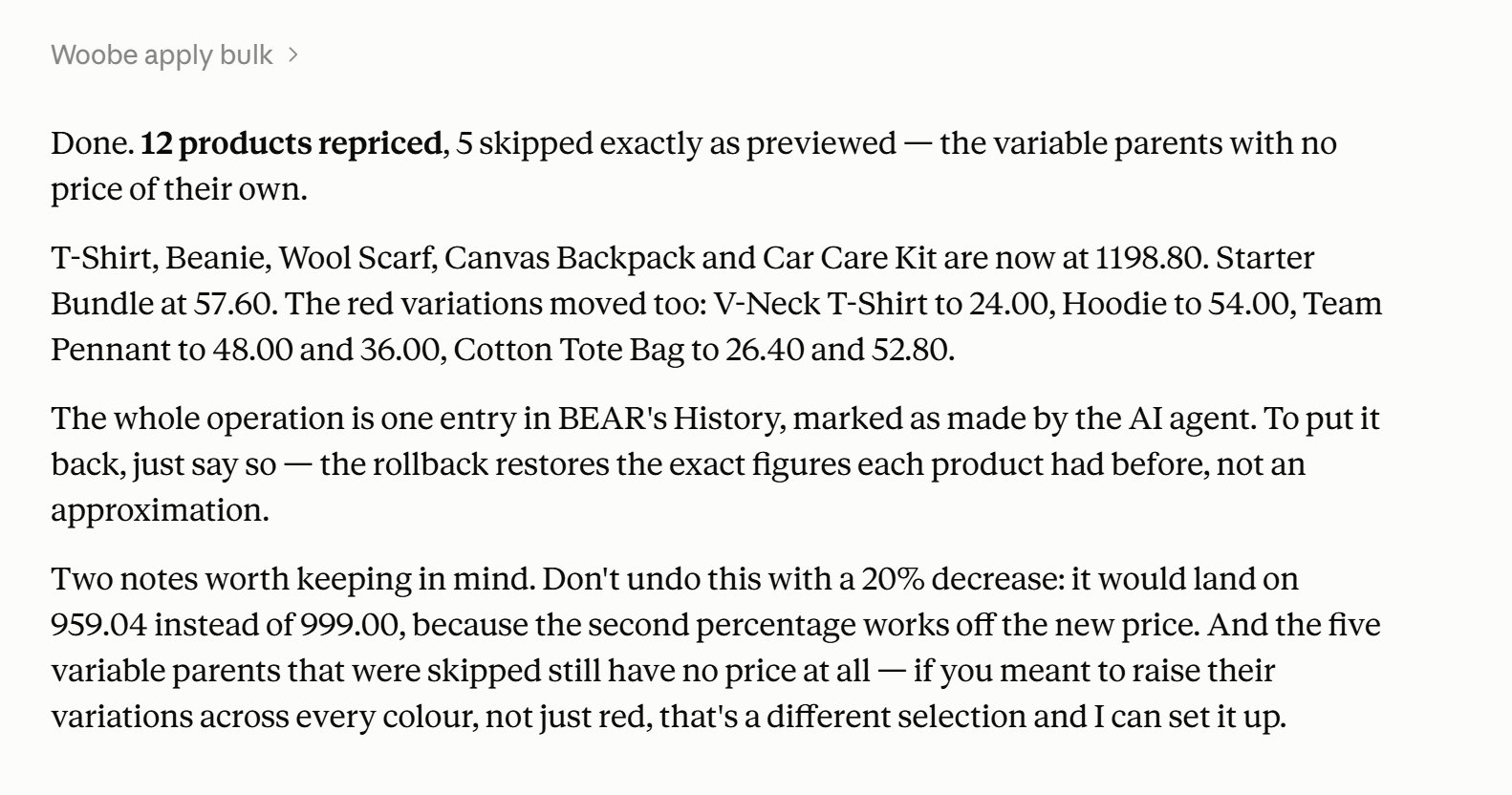
The assistant finds seventeen matching items — eleven products and six red variations — and shows what would happen before writing anything. Products at 999 become 1198.80. Five variable parents are skipped automatically, because a parent holds no price of its own and a percentage of an empty field would write a zero, which is a price a customer can buy at.
Schedule a sale with a start and end date
Discount the red products 40% from the 15th to the 30th.
Sale price, start date and end date go on together — dates alone save cleanly and do nothing. The preview warns you when a product already carries a deeper discount, because forty percent off list would raise its sale price rather than lower it. That one catches people out every season.
Find the product variation that gets returned most
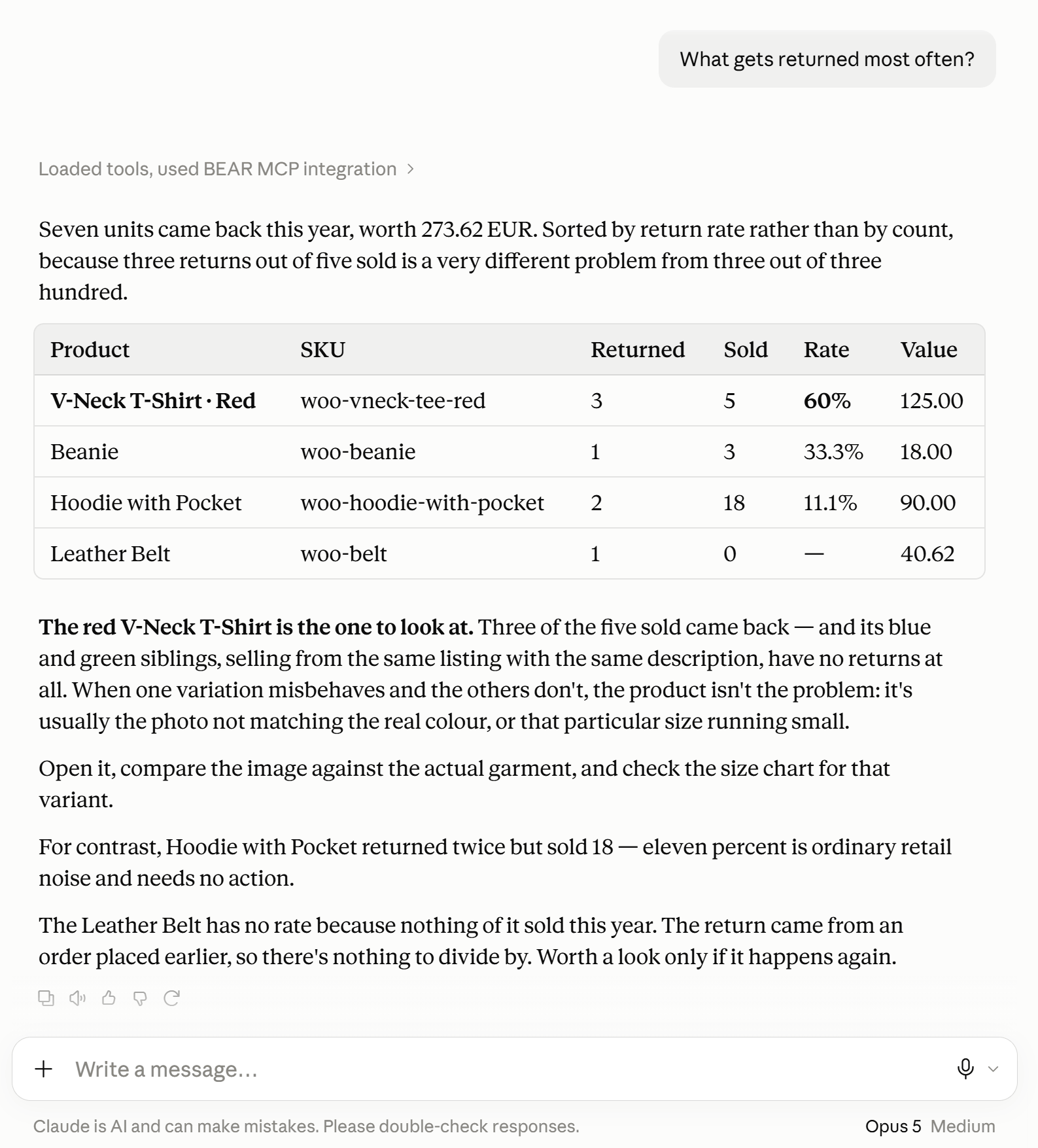
What gets returned most often?
Not “shirts return eleven percent of the time”, which is true and useless. Per variation: one particular colour comes back sixty percent of the time while its siblings sit at eight. That’s a photo problem or a sizing problem, and you now know exactly which product to open.
Know when to reorder: stock against selling rate
What’s about to run out?
Stock on hand next to how fast each product actually sells, at three scales. Nobody plans a purchase order around 0.072 units a day; two a month is a sentence you can act on. Products that don’t track stock and products that sold nothing are left out, because neither can run out.
Export a WooCommerce price list as CSV
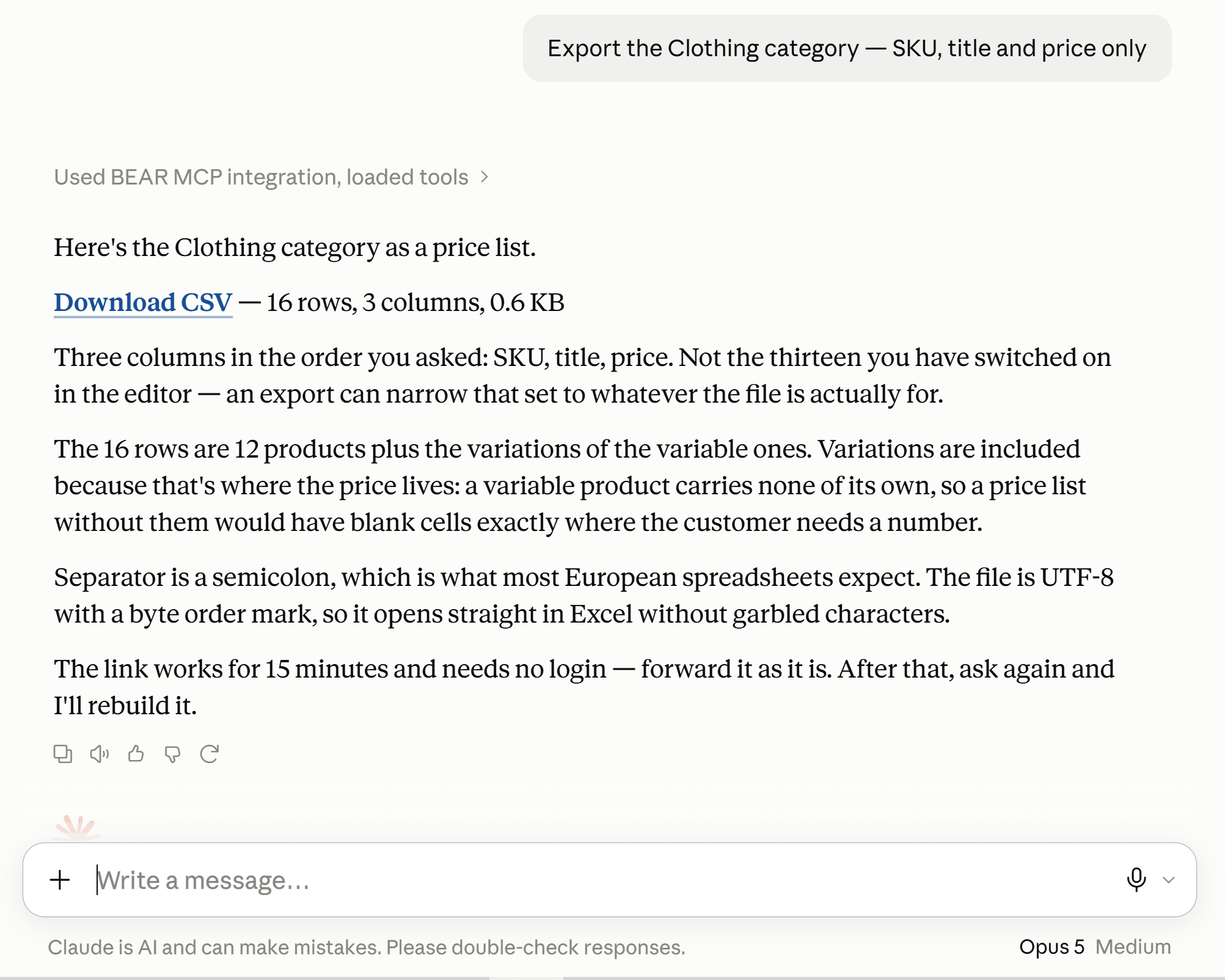
Export the Clothing category — SKU, title and price only.
A CSV with three columns in that order, ready to send. Not the thirteen columns you happen to have visible in the editor.
WooCommerce sales by month
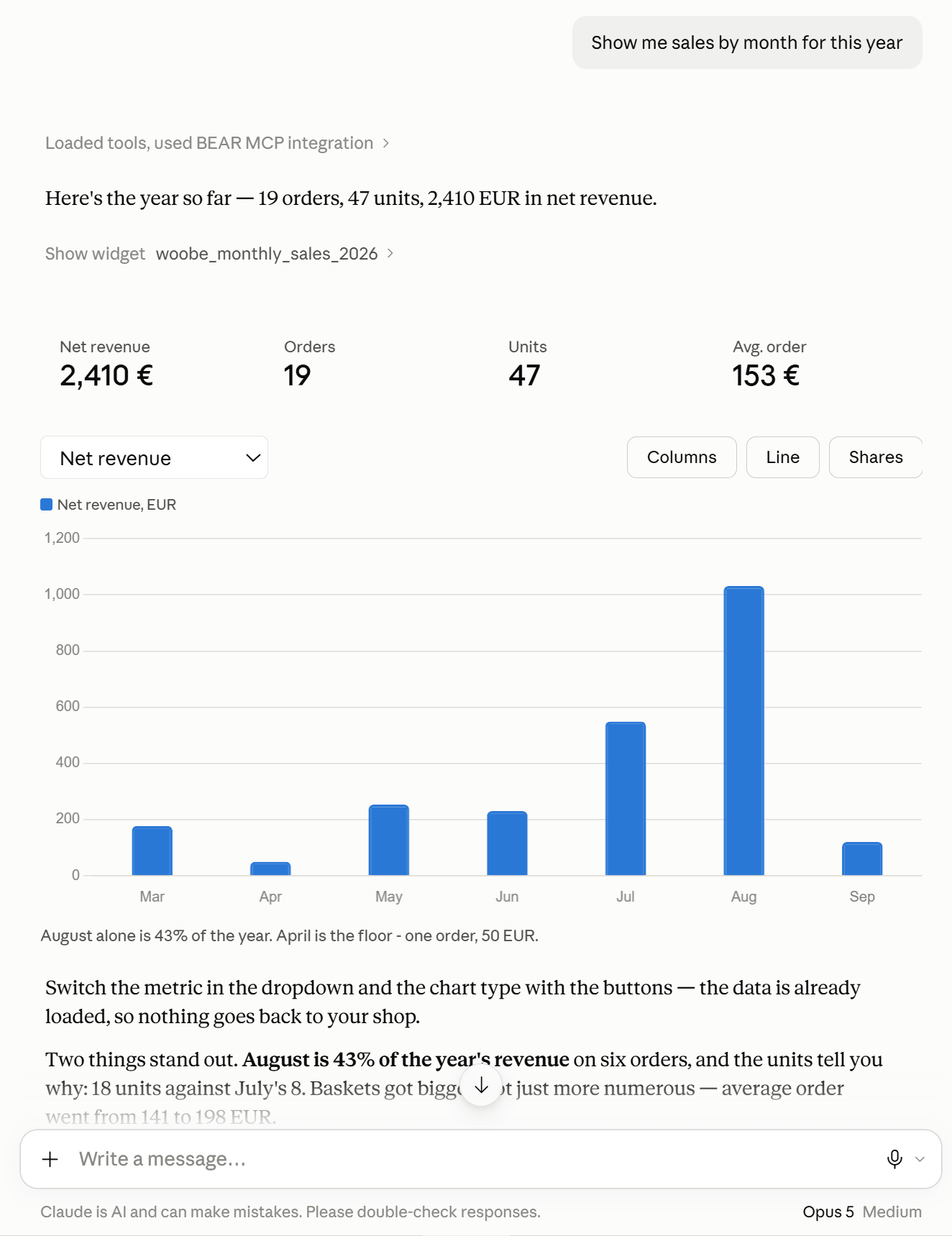
Show me sales by month.
Revenue as columns, a line, or shares, with order counts and average order value beside them. A shop whose best seller by units sits near the bottom by revenue is selling cheap volume — that shows up here rather than from your accountant.
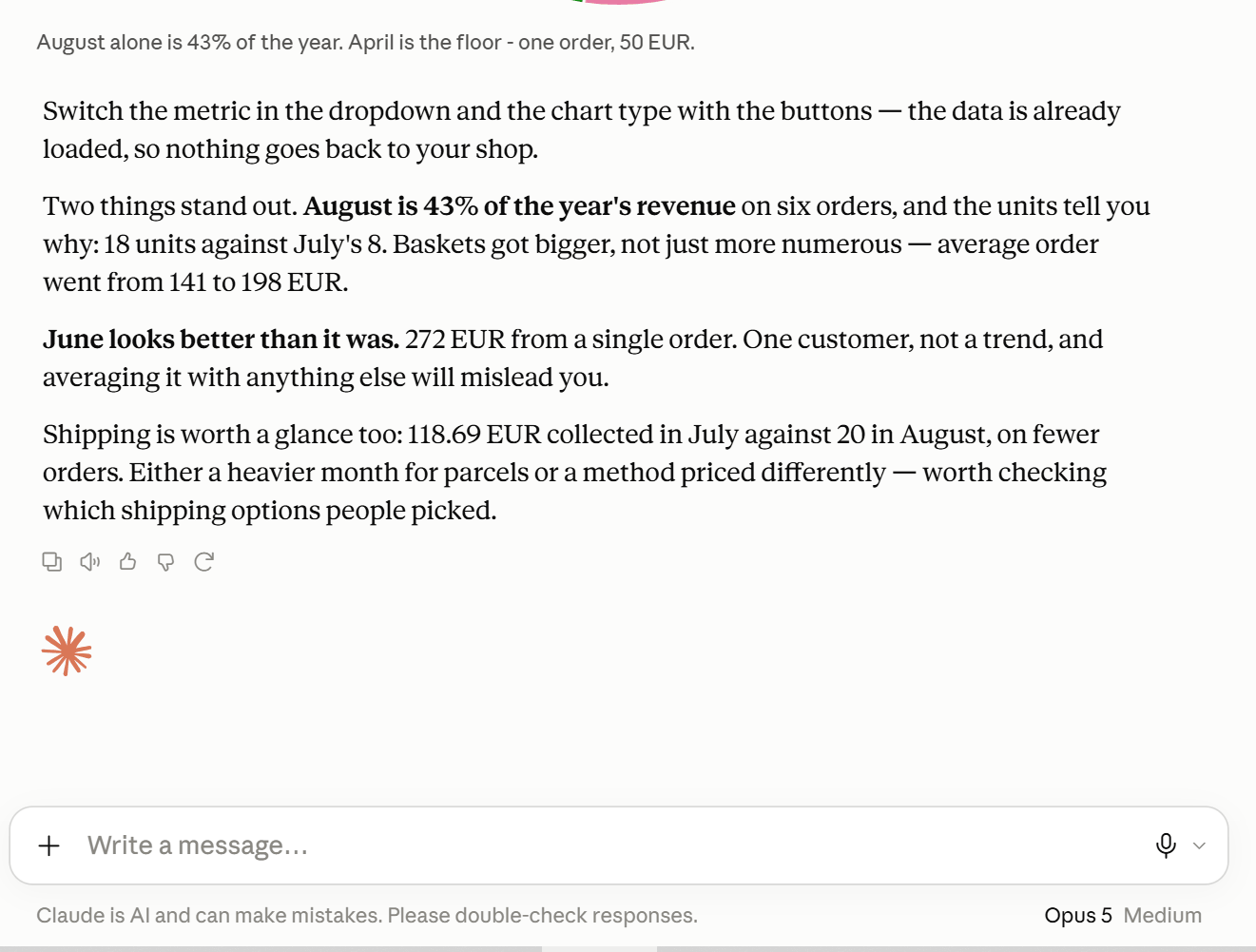
Charts in the chat: asking for a picture, not just a number
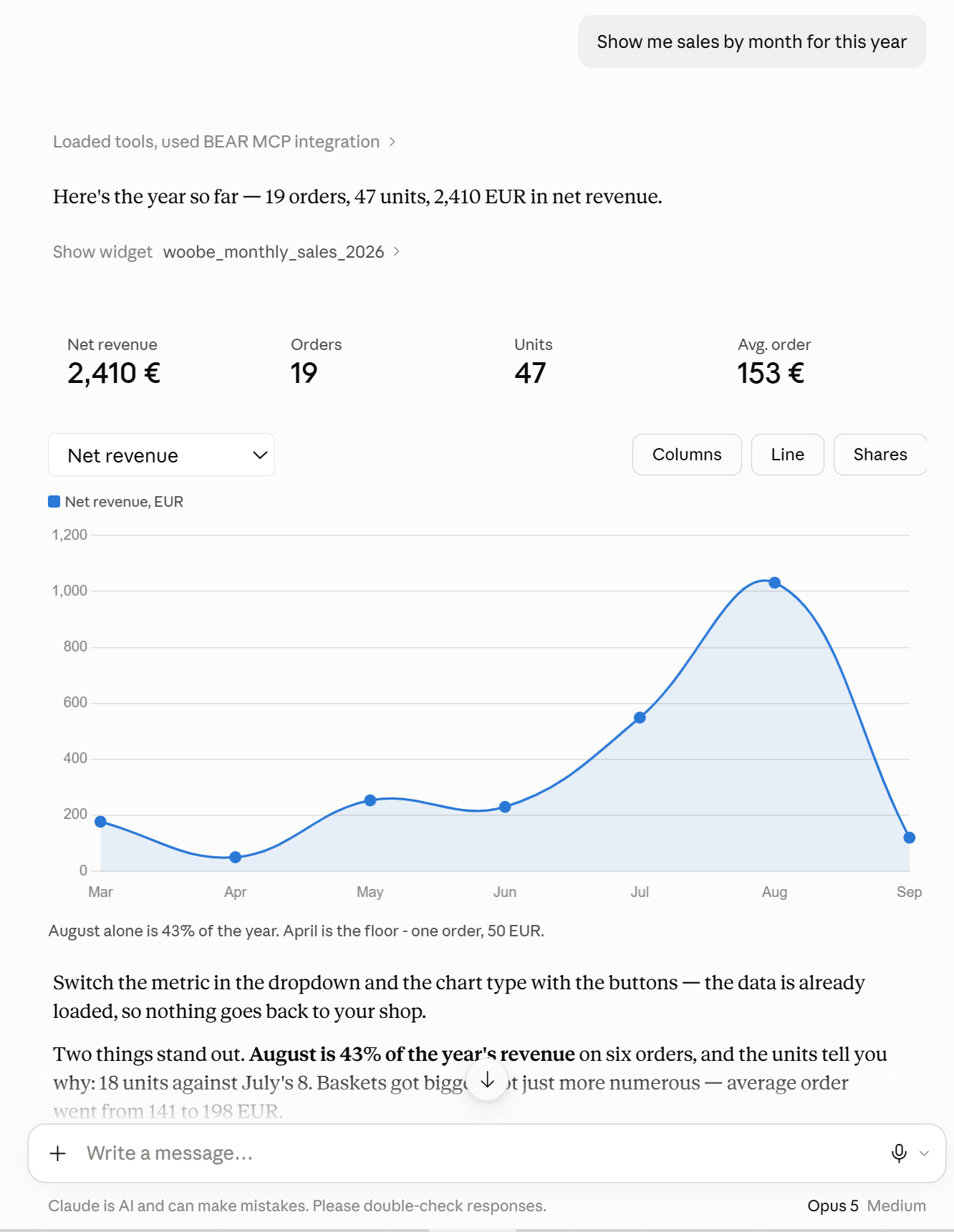
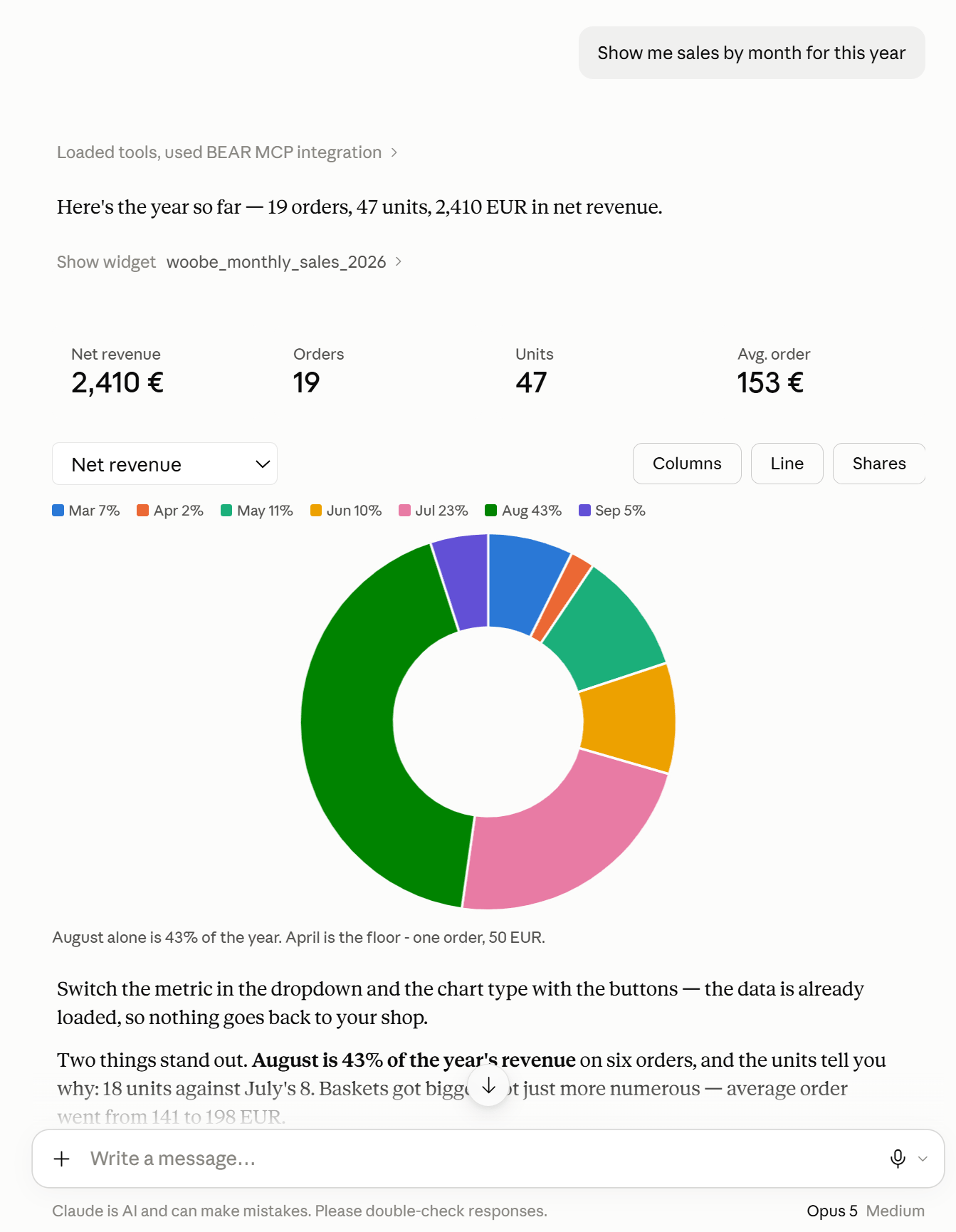
If your assistant renders HTML — Claude in the browser and the desktop app do — you can describe the chart itself, not only the data behind it. It builds the thing in the conversation, and it stays interactive: you switch views without asking again, because the numbers are already there.
Say what you want to see and how:
- Show sales by month as columns, and let me switch to a line.
- Refunds over the year as a wave, and a second view with the percentage of revenue.
- Top ten products by units and by revenue, side by side — I want to see where the order changes.
- Split the shipping methods as shares, with the percentages on the legend.
- The stock list as a table with search and paging, sorted by days of cover.
- Same chart, but only the last quarter.
Two things are worth knowing before you ask.
The picture is drawn from data the assistant already fetched, so switching between columns, a line and shares costs nothing. Changing the period or the filter is a new question and goes back to your shop for fresh numbers.
Product images don’t appear. The sandbox that renders these charts can’t load files from your domain, so tables come out as text and columns. It’s a limitation of where the drawing happens, not of the connection.
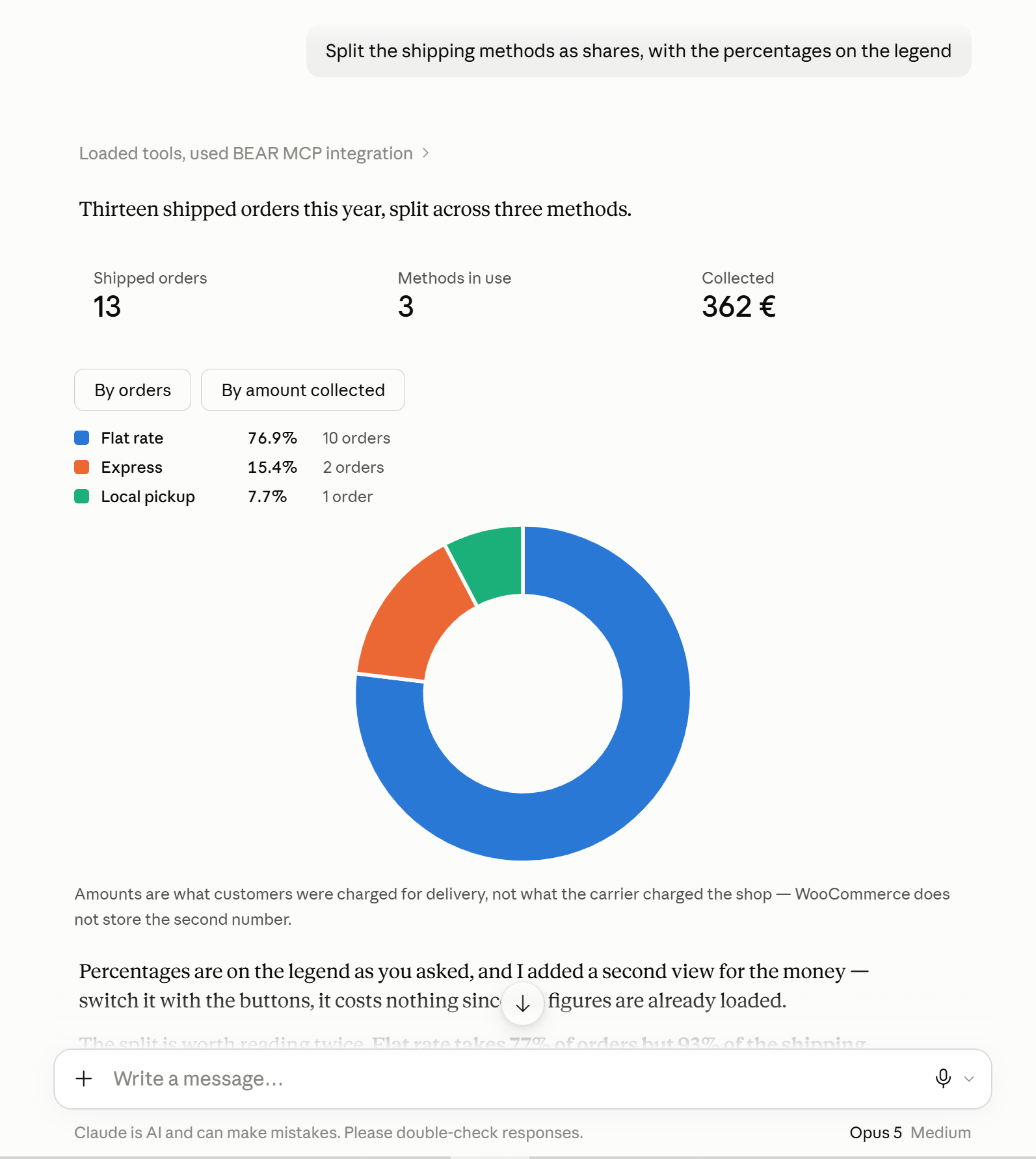
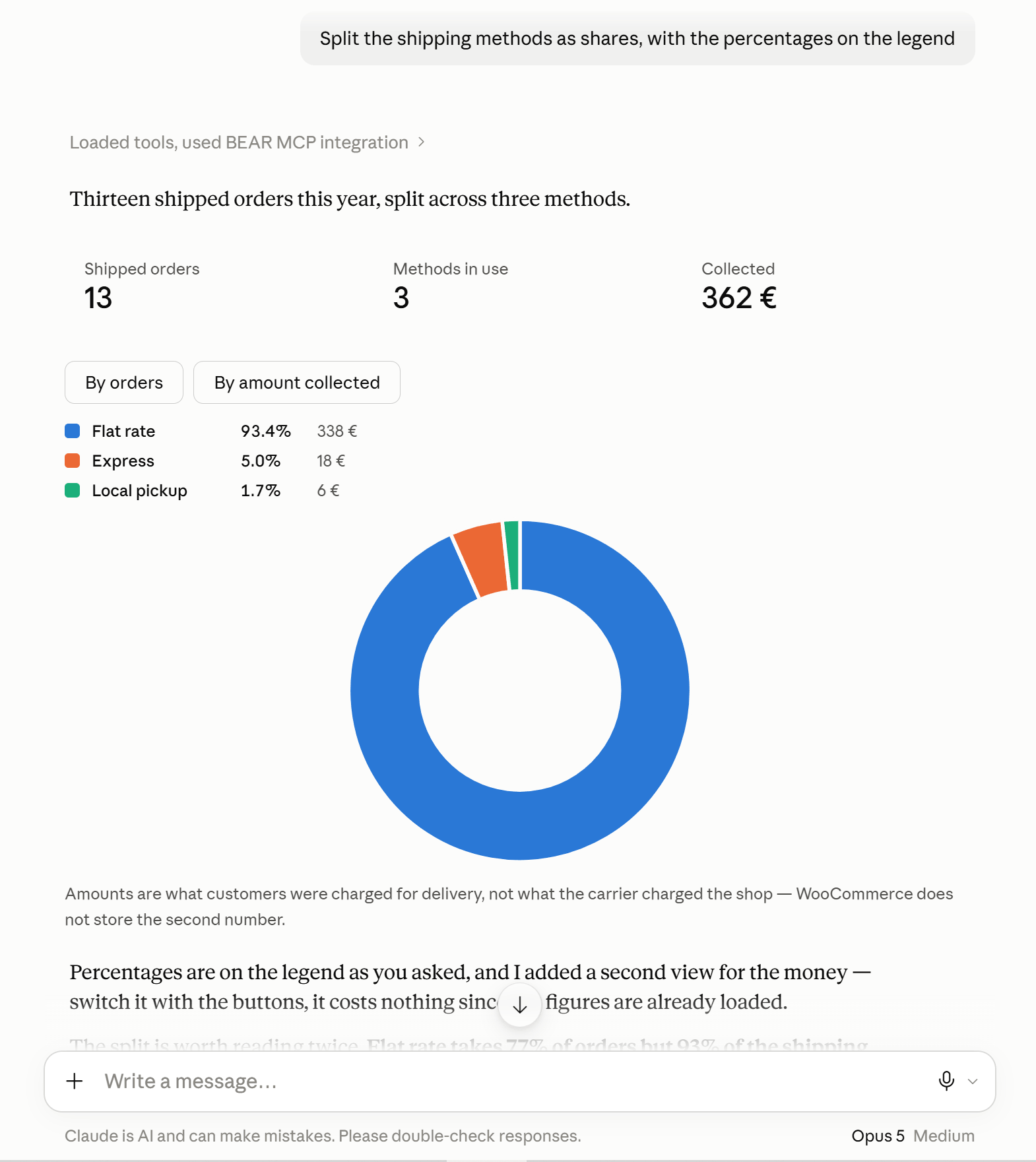
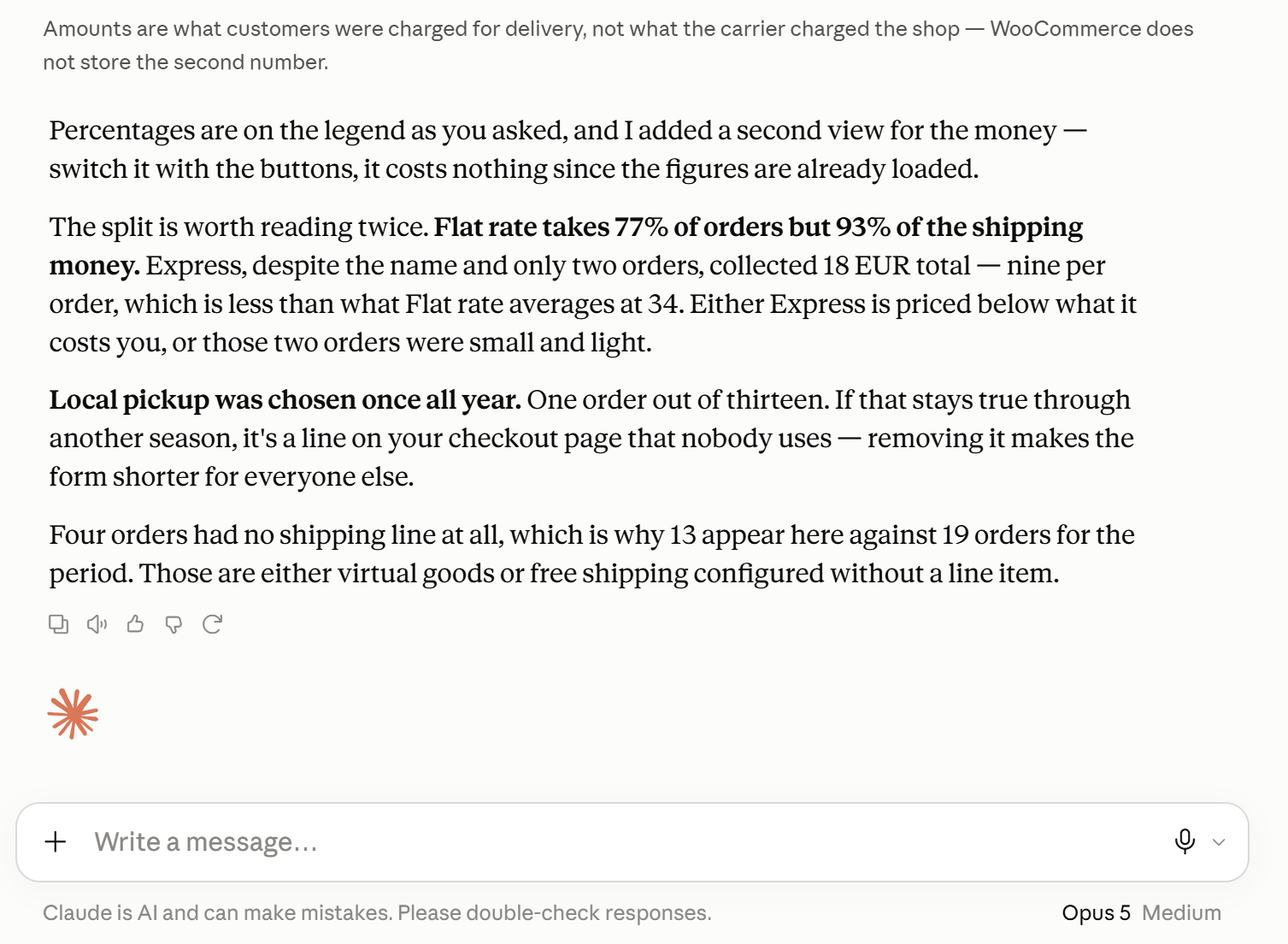
In ChatGPT and other clients that can’t render HTML, the same request returns the same figures as a table in text. Nothing is missing except the drawing.
Twelve ready-made questions about your shop
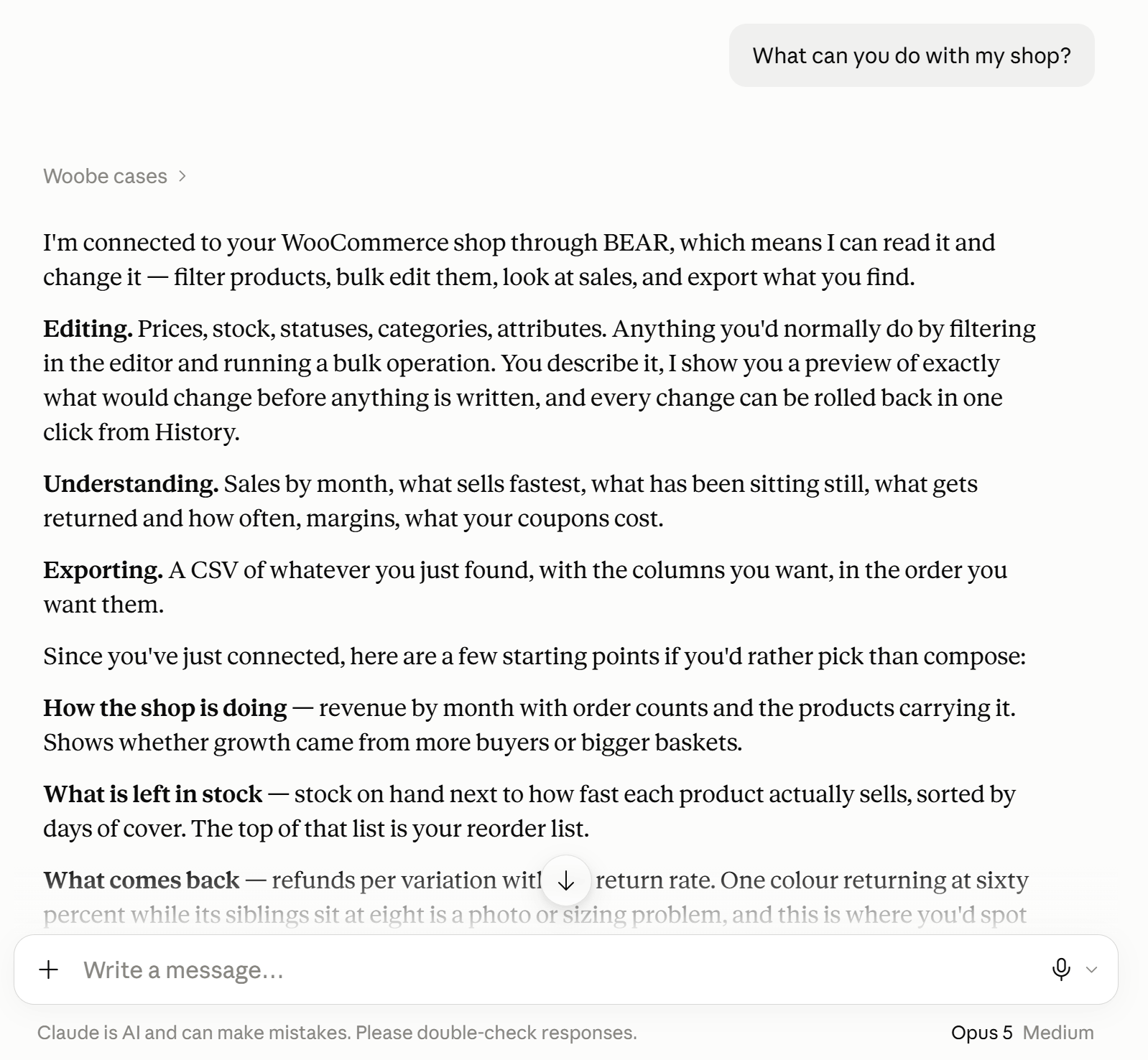
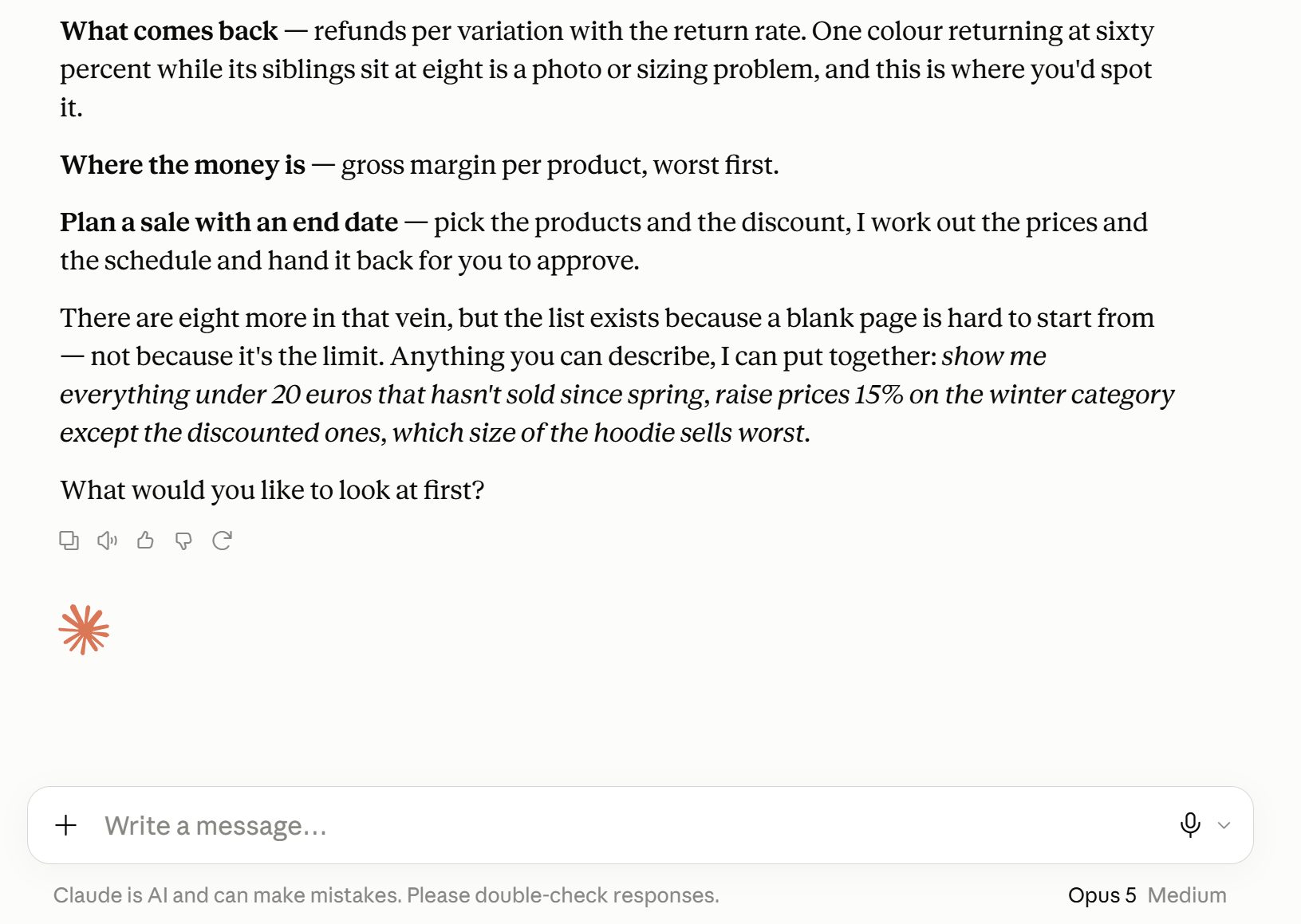
A blank prompt is hard to start from, so BEAR ships twelve prepared ones. Ask your assistant what it can do and it offers the ones that fit whatever you’ve been discussing.
- How the shop is doing — revenue by month with the products carrying it
- Show me the numbers — one period from three angles, ready to switch between chart types
- What is left in stock — stock against selling rate, sorted by days of cover
- When to buy more — the reorder list, soonest first
- What sells fastest — units per day, so cheap volume isn’t hidden behind one big sale
- What is not moving — products that sold nothing, with what’s still on the shelf
- What sold and what came back — best sellers next to refunds by rate
- What comes back — refunds per variation
- Where the money is — gross margin per product, worst first
- What the discounts cost — every coupon, how often used, how much given away
- How people pay and get it — share of orders per shipping method and gateway
- Plan a sale with an end date — works out the prices and hands back the change for you to approve
They’re a starting point, not a menu. Anything you can describe, the assistant can build.
How BEAR keeps you from breaking your shop
An assistant with write access to a live catalogue is a real risk. The safeguards are structural rather than advisory.
Nothing is written without a preview
Before any bulk change you see the old value and the new one for a sample of products, how many are affected, and what the operation cannot touch. Nothing has been written at that point.
Warnings you couldn’t work out from the numbers
- Products whose sale price WooCommerce will silently delete because the new regular price fell below it
- Variable parents, where writing a price changes nothing a customer sees
- Empty fields, where a percentage change computes to zero
- Sale dates set without a sale price, which save cleanly and do nothing
- Products already discounted more deeply than the sale you’re planning
A count you have to confirm
A write operation never accepts a filter. It accepts a selection that has already been run, whose exact size you were told, and refuses to proceed unless that number is confirmed. A filter silently widening to the whole catalogue cannot happen.
Every bulk edit lands in your history
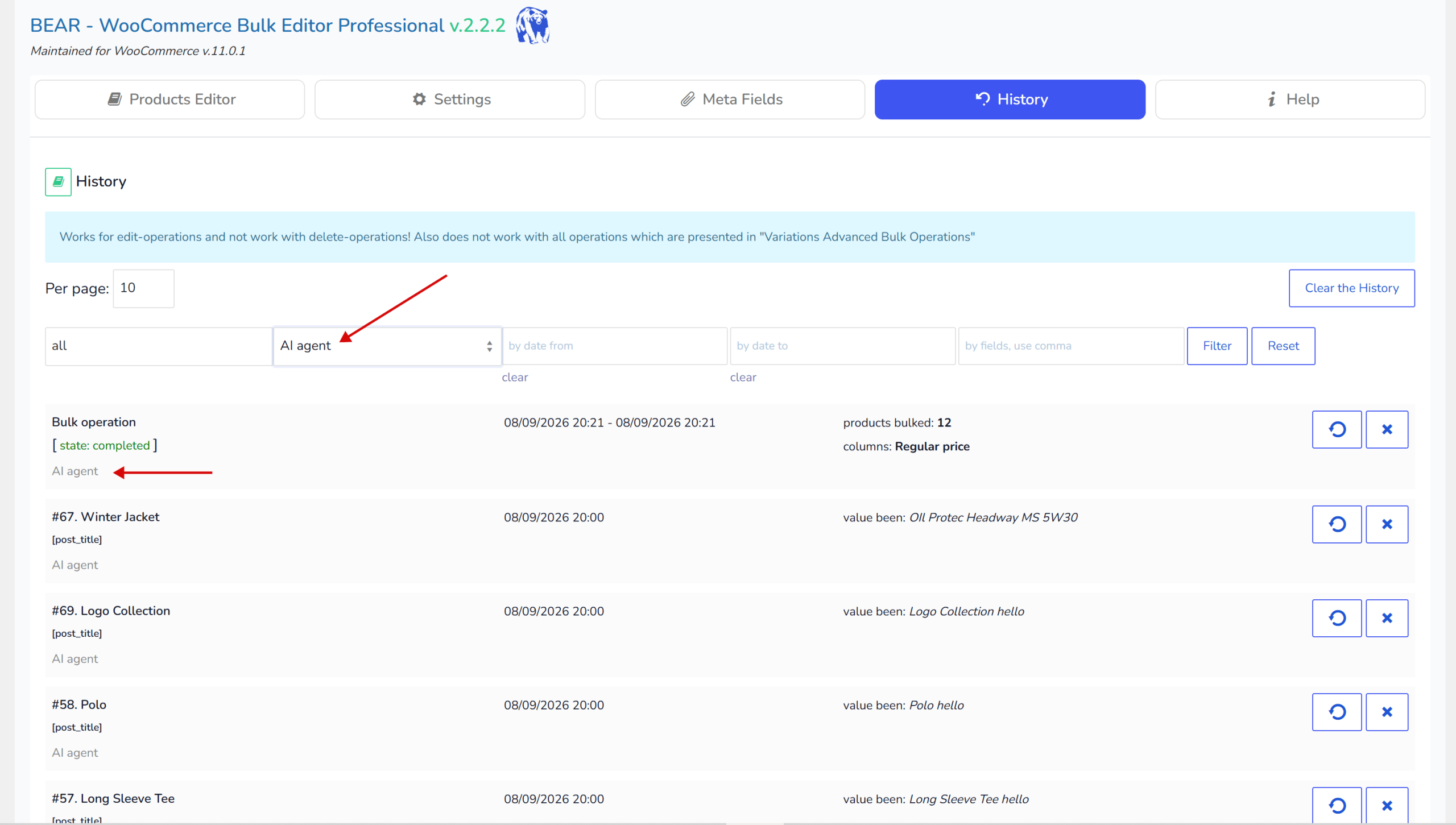
Every change appears in BEAR’s History tab beside your manual edits, marked as made by the AI agent so you can tell them apart. One click puts it back, and history stores the actual previous value of every field, so a rollback restores exactly what was there.
Worth knowing: undo a percentage change with the rollback, not with the opposite percentage. Twenty up then twenty down doesn’t return you to where you started, because the second percentage is calculated from the new price. Deleting is the one exception to all of this — see below. On the free version only the last two operations are kept — see below.
Bulk delete WooCommerce products
Ask to remove something and you get the same treatment as any other bulk operation, with one difference in how it comes back.
The preview names what would go, how many variations would go with each product, and — separately — which of them have sold in the last three months. That last list is the useful one: a filter that caught more than intended shows itself there, in the shape of a product you recognise, rather than as a number you read past.
Products go to the trash rather than being destroyed, the same as the delete button on the editor screen. Say so and they come straight back, to the status they had before — a published product returns published, not as a draft. You can also list what’s in the trash and restore from there later.
Delete the discontinued items. Actually, put them back.
Variations are the exception. WordPress has no trash for them, so removing a variation is permanent. BEAR says this before doing it and says it again afterwards, because everything else here is reversible and it would be reasonable to assume this is too.
One thing worth knowing: deletion does not go through BEAR’s History. History stores the previous value of a field before overwriting it, and a deleted product has no previous value to write down. The trash is the way back, not the rollback button.
Restoring deleted products from the trash
The trash is not somewhere you have to go and look. Ask what is in it and you get the list — what was deleted, how long ago, and the status each one will return to. Ask for something back and it returns to where it was.
What’s in the trash? Undo what you just deleted. Restore the three scarves.
That last detail matters more than it sounds. WordPress restores a trashed item as a draft, which means a product you thought you had recovered is still missing from the shop. BEAR puts back the status the product had before it was deleted, so a published product comes back published and you do not have to notice the difference.
Deleted products sit in the trash for thirty days by default before WordPress clears it out.
Exporting WooCommerce products and price lists
The export tool builds its rows with the plugin’s own export code, so a file produced from a conversation is identical to one produced from the Export tab — attributes expanded into four columns each, ready for WooCommerce’s product importer.
What you can ask for:
- Which products — any filter you can describe, or the whole catalogue
- Which columns, and in what order — a price list starts with the SKU, an inventory sheet doesn’t need descriptions
- Which separator — a semicolon for European spreadsheets
- With or without variations — on by default, since that’s where price and stock live
You get a download link that works for fifteen minutes and needs no login, so you can forward it or open it on your phone. The file is UTF-8 with a byte order mark, which means it opens in Excel without turning into mojibake.
Columns are drawn from the ones switched on in the editor. An export can narrow that set, not add to it — if a column you want isn’t there, switch it on in the plugin settings first.
Multi-currency shops: reports in your base currency
WooCommerce analytics stores every amount in whatever currency the order was placed in and keeps no record of which. On a shop selling in several, a plain total adds euros to yen and produces a number that means nothing.
BEAR converts every reported amount back to your base currency using the exchange rate stored on each order at the time of purchase, so a March order is valued at March rates. This works out of the box with FOX — WooCommerce Currency Switcher. With another currency plugin the reports say plainly that the figures mix currencies and can’t be trusted, rather than presenting a wrong total as a right one.
Free and paid: what the free version allows
The MCP server is in both versions. Reading is unrestricted in both — every report, every ready-made question, every chart, and the CSV export all work the same whether you paid or not.
The free version limits writing, in two ways.
Which fields can be bulk edited
Prices, stock, statuses and product categories can be bulk edited. Most other fields, every attribute after the first, and the remaining taxonomies cannot — not in bulk and not one product at a time. If you ask for one of those, the assistant says so plainly instead of pretending to work.
How many products per half hour
Up to 100 products every 30 minutes.
It isn’t a gate that slams shut and opens again on the half hour. The allowance trickles back: one more product every eighteen seconds, whether you’re watching or not. Spend it all, walk away for five minutes and there are sixteen waiting. Ten minutes, thirty-three. Half an hour and you’re back to a full hundred.
Which means a shop owner who needs to fix one price never waits more than eighteen seconds for it, and one changing forty products barely notices the limit exists.
Undoing something is always free. A rollback never counts against the allowance, so you’re never stuck with a change you regret and no room to reverse it.
What a long bulk edit looks like
Ask for more than the allowance holds and nothing is refused. The job simply runs in portions.
You see how many products were written, how many are left, and a countdown to the next batch — down to the second, because the allowance refills continuously and “in about half an hour” isn’t something you can plan around. In an assistant that renders HTML you get a progress bar and a Play button that stays greyed out until enough has accumulated, then lights up on its own with the number it can write. Elsewhere you get the same figures as a sentence and type “continue” when you’re ready.
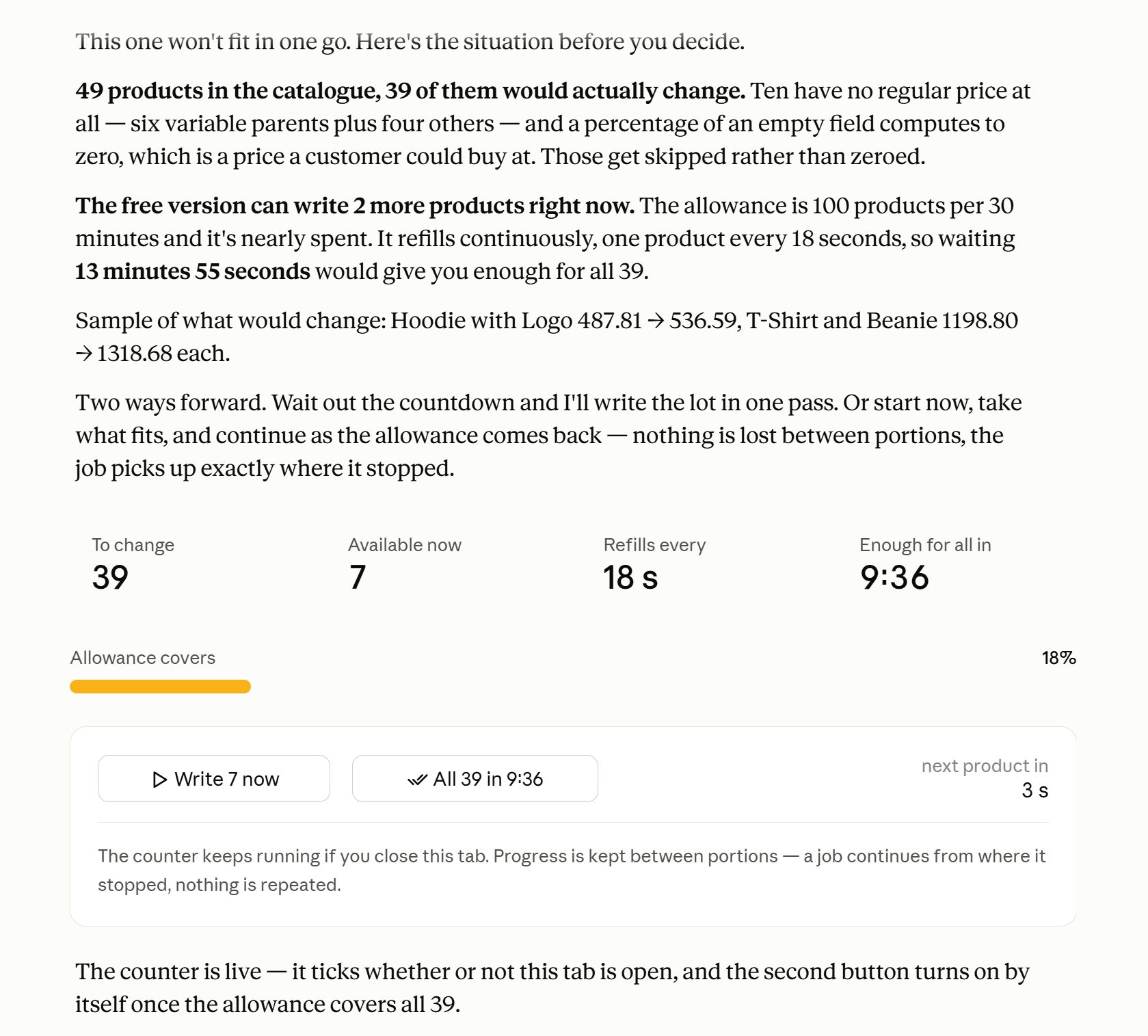
Nothing is lost between portions. The job picks up exactly where it stopped, and your selection stays valid for 24 hours.
Where the line actually falls
Forty products is one batch and you’re done. Four hundred is a couple of hours with a few clicks along the way. Five thousand is more than a day, and at that point the arithmetic makes its own argument — the paid version has no allowance and no field restrictions, and writes the same five thousand in one go.
BEAR tells you which of those three you’re in before starting, with the real numbers rather than a nag.
How much history is kept
The free version keeps the last two bulk operations. Anything older is removed as new ones arrive, and once a record is gone the change behind it can no longer be rolled back — the products keep their new values and there is nothing left to restore from.
For a shop making one edit a week this is invisible. It bites when you run several operations in a session and then decide, three edits later, that the first one was wrong. The paid version keeps the full history, so anything you did stays revertible.
The assistant will tell you when an operation you are asking about is no longer there, rather than looking for it and failing quietly.
Handing a long job to your own agent
An assistant in a chat window works only while you’re there. It can’t wait twenty minutes for an allowance to refill and then carry on — nothing wakes it up.
An agent that runs unattended can. It needs the same two things, the address and the key, and everything described here works identically for it. Describe the task in plain words and it works through the pauses on its own.
Requirements
- WooCommerce 6.0 or newer
- HTTPS on your shop
- An AI client that supports MCP
- For sales, refund and margin reports: WooCommerce Analytics enabled, with its historical import finished
Common problems and how to fix them
The assistant offers a sign-in flow instead of a header field
Choose None under Authentication. The header fields appear once you do.
The connection is refused
Check the key matches the one in settings, that it’s prefixed with Bearer and a space, and that the address has no ?key= on the end — keys in the address are rejected by design.
New tools don’t appear after an update
Most clients cache the tool list from the moment the connector was added. Ask your assistant what it can do and it reads the live list from the server, including anything your client hasn’t picked up. To refresh the list itself, remove the connector and add it again.
The shop shows something that isn’t there
A product type that stayed on the old value after an edit, a category count that disagrees with what’s in it, sorting that ignores a price you just set, a filter listing products that shouldn’t match. Almost always a cache rather than lost data.
Say what you’re seeing and the assistant can clear it from the conversation — the same actions as the buttons under WooCommerce → Status → Tools, without going to look for them. It knows which one fits which symptom, starts with the harmless ones, and asks before anything that deletes.
If the symptom survives that, it isn’t a cache and the assistant will say so rather than running more actions hoping one sticks.
A report is empty even though there are orders
Sales reports read WooCommerce Analytics tables. If Analytics was enabled recently its import may still be running — check WooCommerce → Status → Scheduled Actions, or trigger a recount from Analytics → Settings.
Why is my margin empty?
Margin needs a cost of goods recorded on the product. Where it’s missing BEAR says how many products were left out rather than guessing — a margin computed over half the catalogue isn’t your margin.