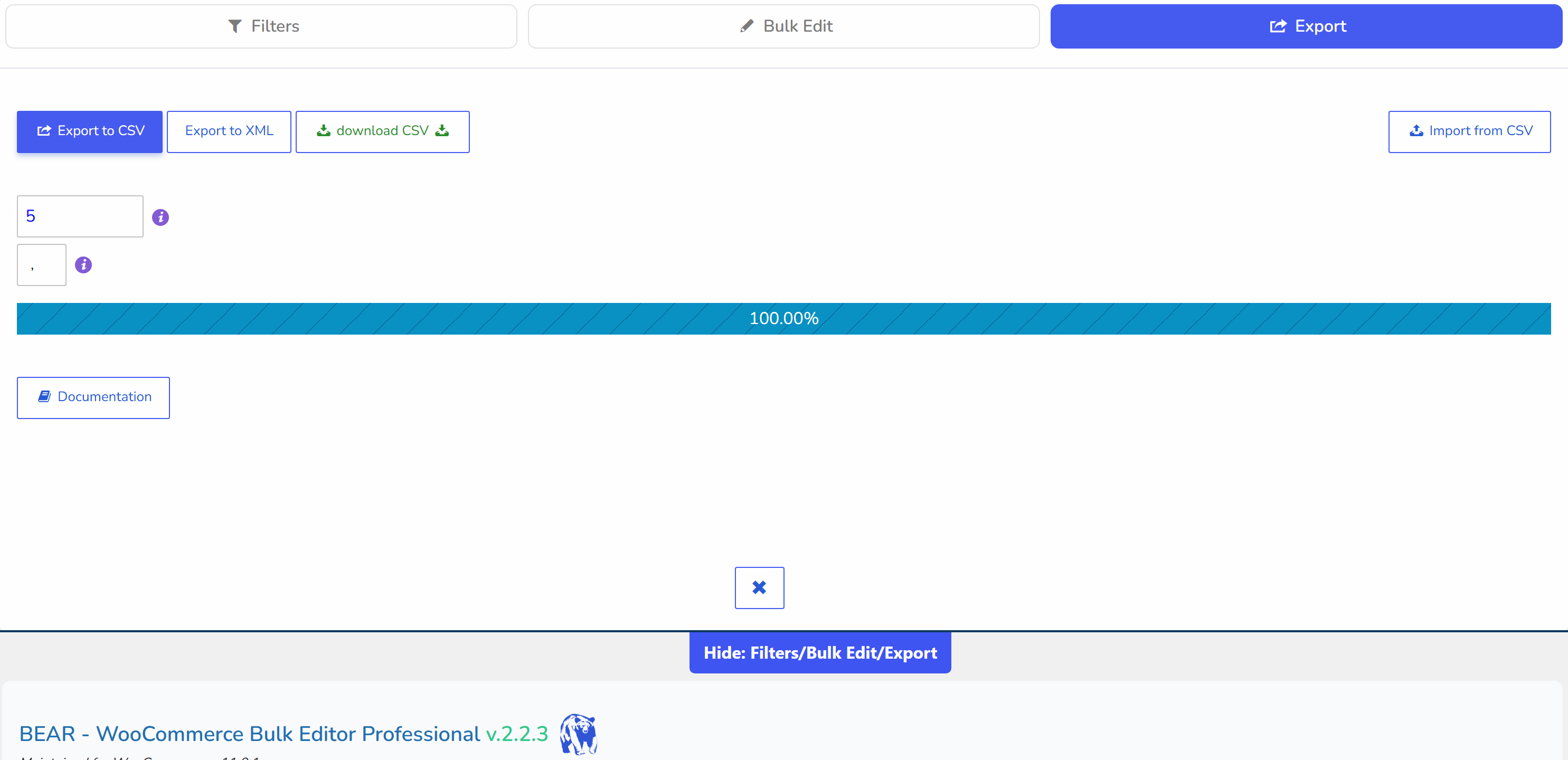
Export WooCommerce Products to CSV or XML
- Do nothing, and in this case all products in the shop will be exported
- Filter products you need by categories or by any other parameters
- Select products using checkbox of the first column and only them will be exported
- Filter products you need by categories or by any other parameters AND then select any you want
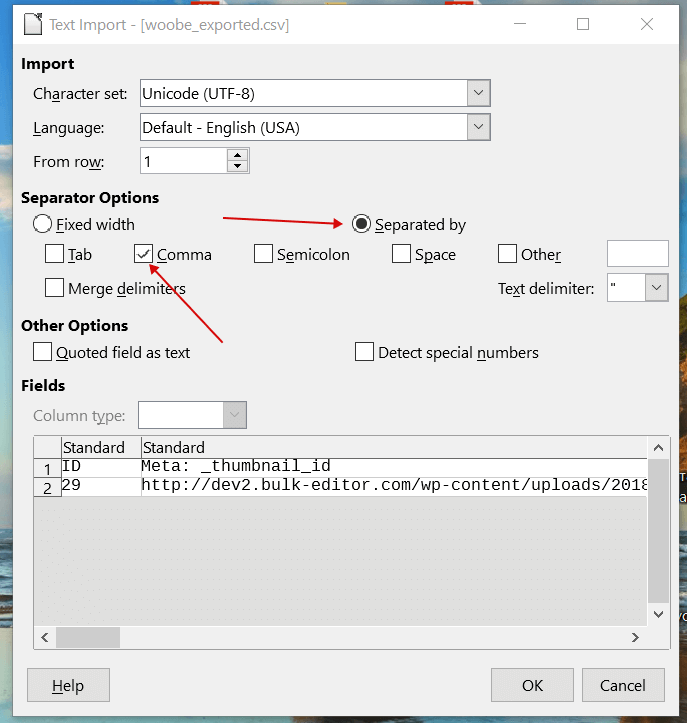
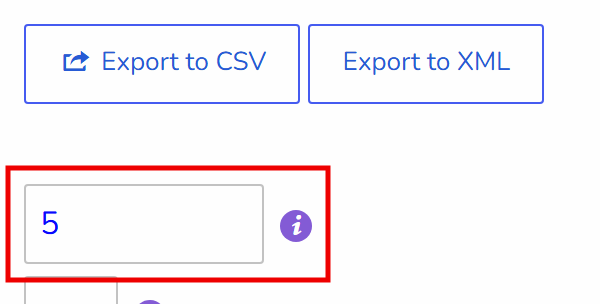
WOOBE for exporting uses WooCommerce data format, which makes it a real product export and import round trip: if you ever searched WooCommerce how to import products you exported, the answer is the native WooCommerce importer, which you can find here: wp-admin/edit.php?post_type=product&page=product_importer. What is main in import - select in the right way relevant data type for each column type. Note: if 'download files' column is presented in the Products Editor, in tab Export will be appeared additional textinput in which you should enter value - maximal possible count of downloads per product. You need do this because there is no possible to automate counting of this value because this data is serialized in the data base!
Note: to export products thumbnails to another shop activate also columns 'Gallery'
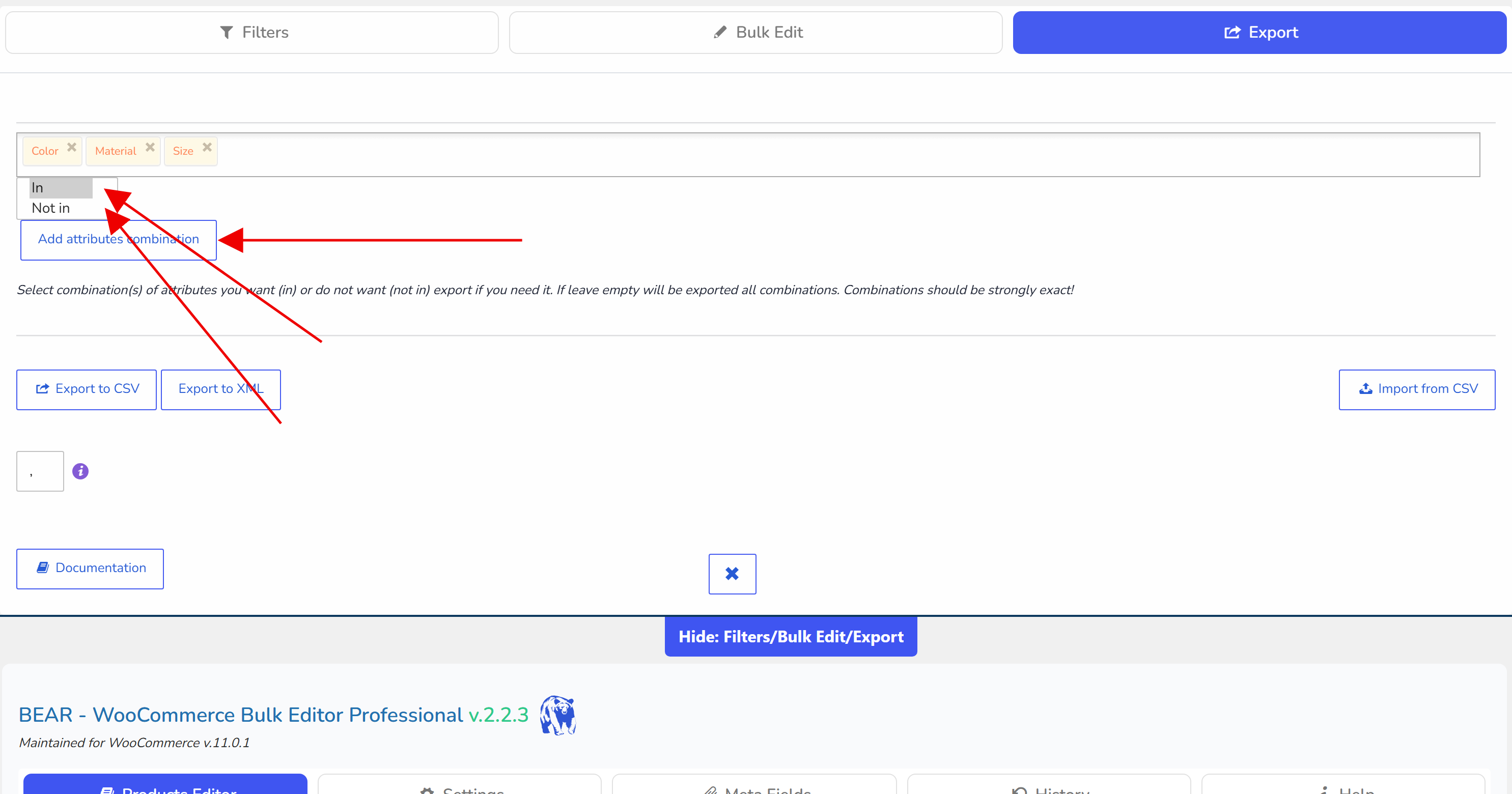
Note: if on the tools panel switch on 'variations' in tab Export will appear filter for combination of products attributes which can be included or excluded in the exported file. If leave empty will be exported all combinations. Combinations should be strongly exact!