BEAR - WooCommerce Bulk Editor and Products Manager Professional
How to remove images from gallery of some products?
Two ways about how to clean the gallery of some products, and for this operation column 'Gallery' should be activated!
Way 1:
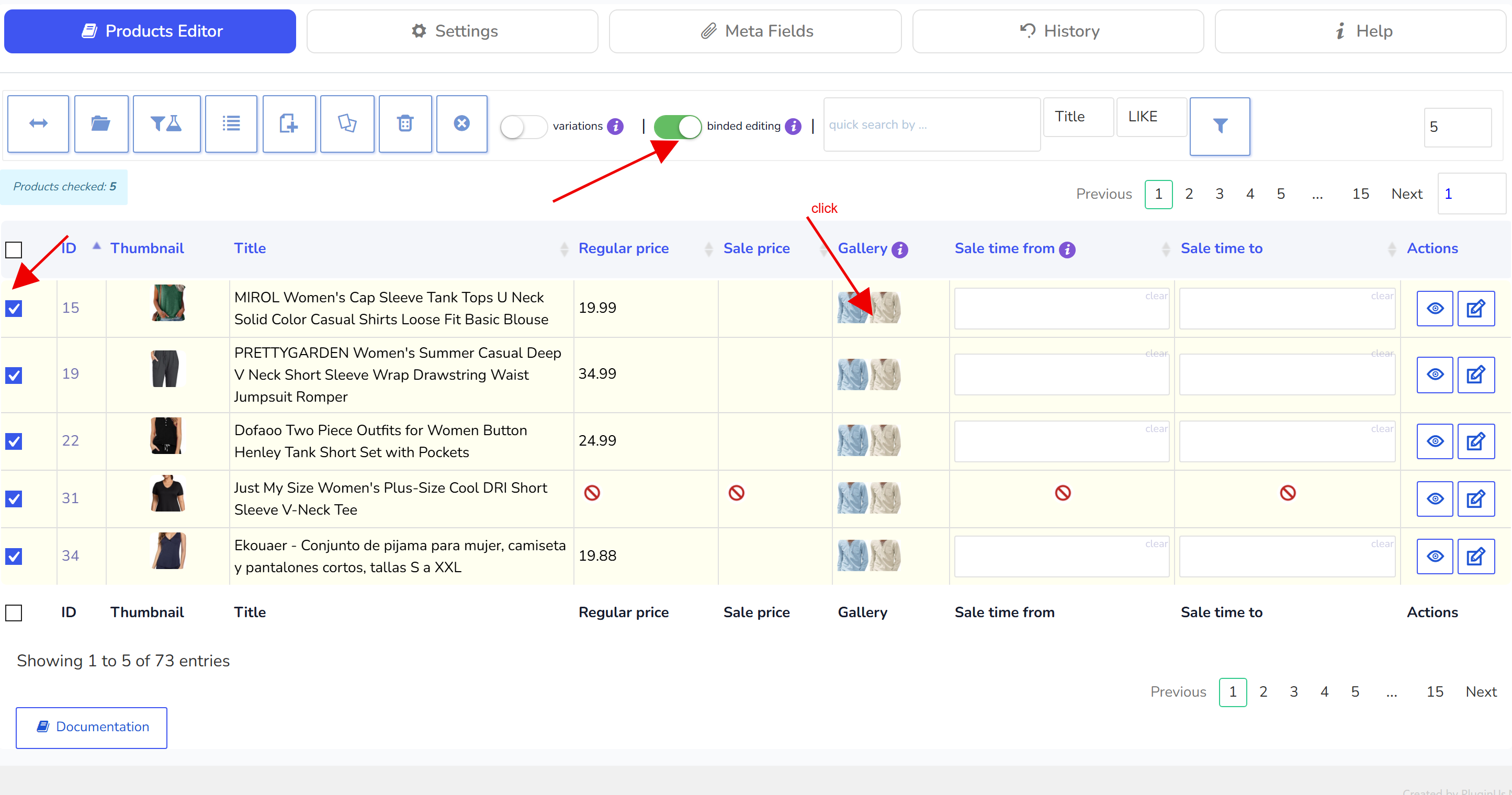
Use checkboxes to select some products
Enable 'binded editing' switcher
Click on Gallery button of any selected product
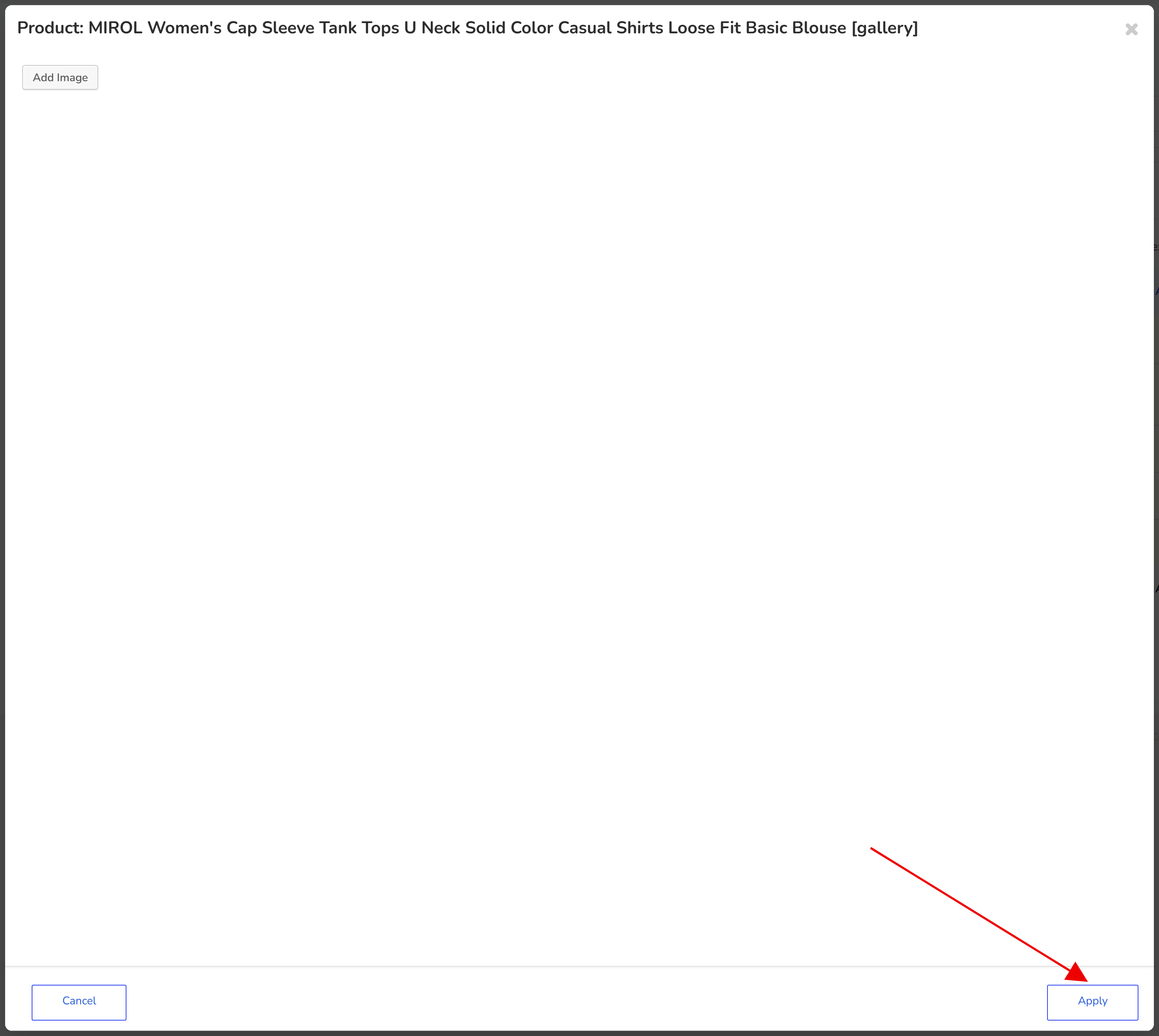
In the opened popup remove all images and press 'Apply' button
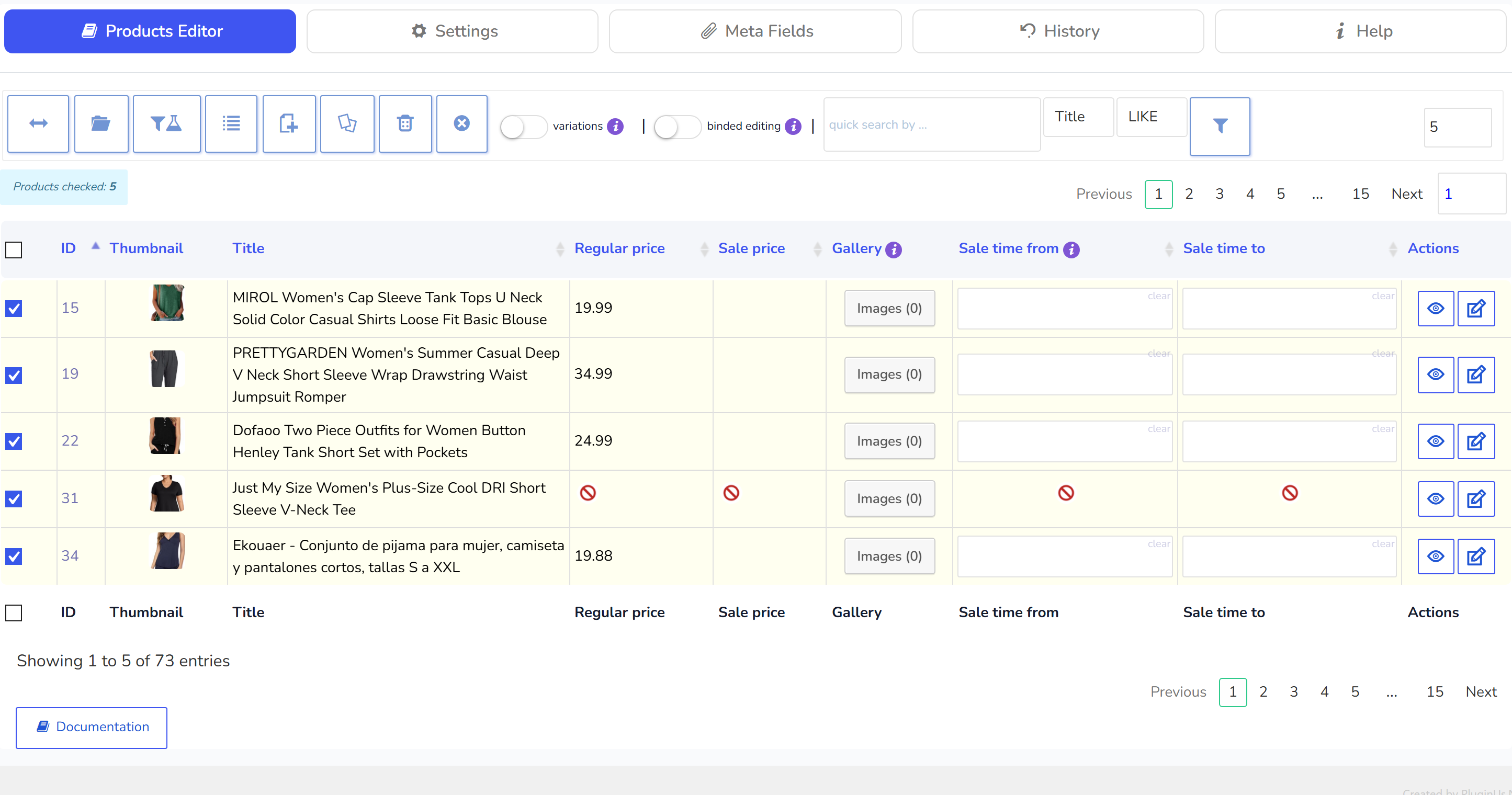
Wait until changes apply to all other selected products
Way 2:
Use the Filter tab functionality where you should filter products by parameters you need
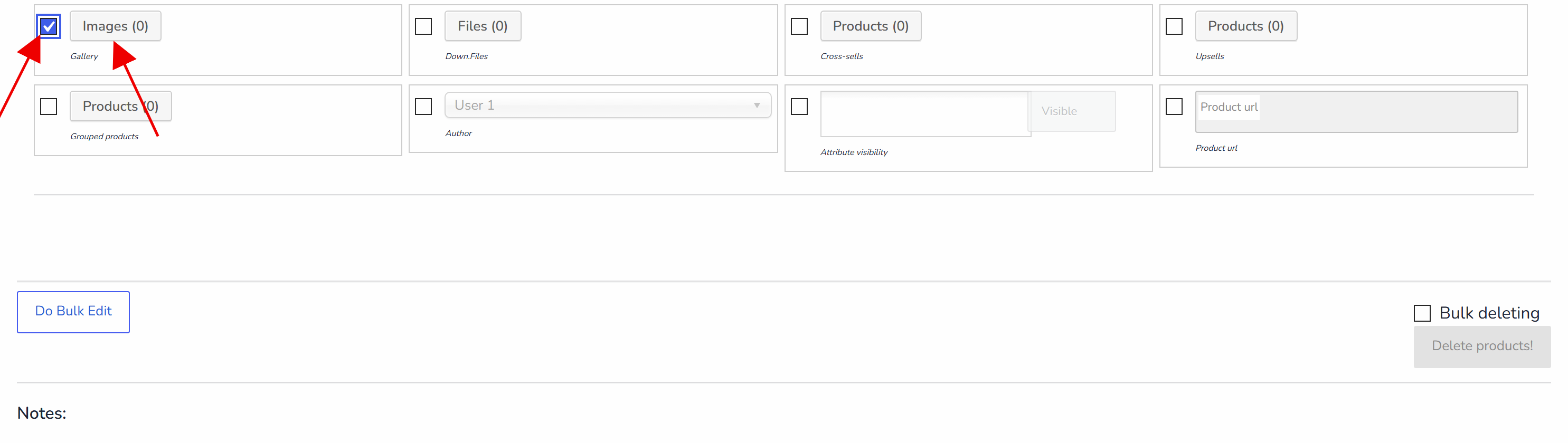
Then go to tab Bulk Edit -> Additional
Select using checkbox Gallery field
Click on Images button there and remove all images there if presented, or/and press 'Apply' button
Click on 'Do Bulk Edit' button and wait until bulk operation for filtered products applies
Of course using way 2 it is possible to clean galleries of all products in the shop if to miss step one there (filtering)
🌸
Documentation for BEAR - WooCommerce Bulk Editor and Products Manager Professional: tabs, tools and developer guides
Documentation — BEAR Bulk Editor
We use cookies to ensure that we give you the best experience on our website. If you continue to use this site we will assume that you are happy with it.