BEAR - WooCommerce Bulk Editor and Products Manager Professional
How to bulk remove sale prices in WooCommerce?
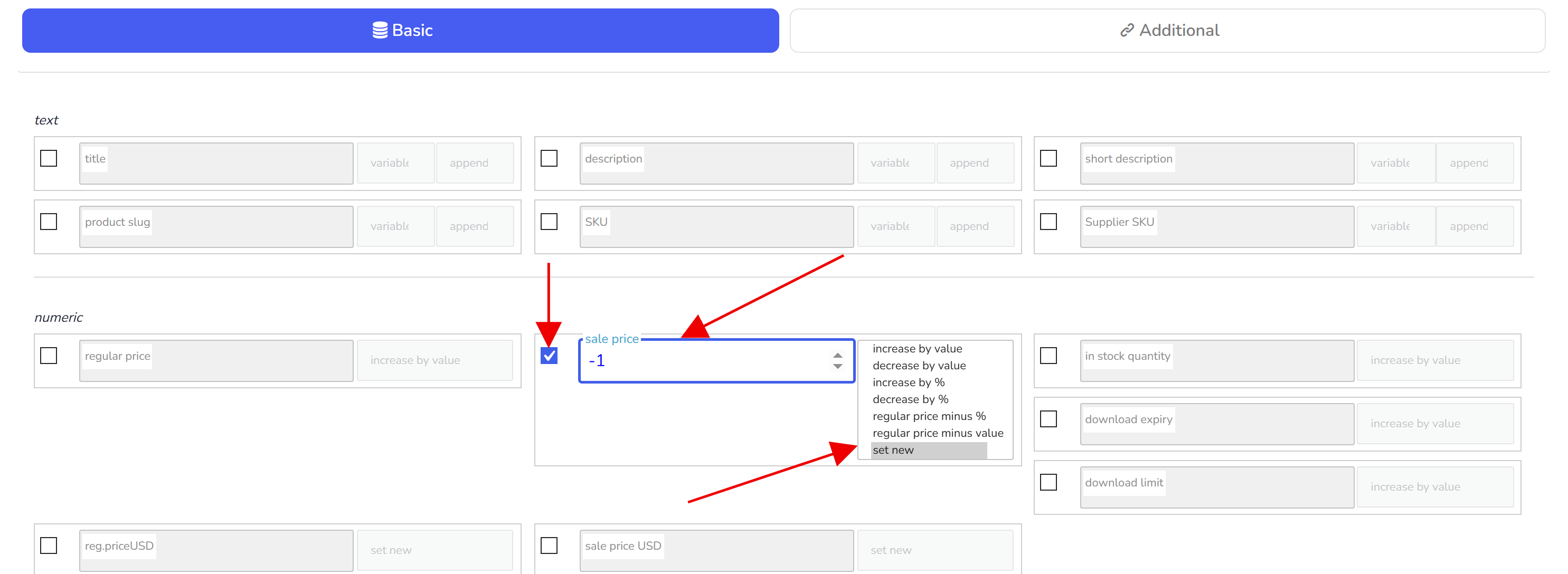
To bulk remove sale prices in WooCommerce, do filtration or selection of the products if it necessary, then go to tab Bulk Edit, find field 'Sale price' and set there '-1' and select operation 'set new'. Step by step:
In the Filters tab narrow the set: a category, or Sale price from 1 to catch every product currently on sale. Press Filter.
Open the Bulk Edit tab and read the line at the top; it must name the filtered products, not the whole shop.
Tick the sale price row, enter -1, choose set new, run.
The -1 tells BEAR to clear the field rather than to write a price, so the product goes back to its regular price. Sale start and end dates are separate fields in the Additional section; if they were set, clear them the same way or the sale schedule stays on the product (see bulk remove sale dates). The run is recorded in History and can be reverted.
Read instructions here: https://paradigma.tools/post/bulk-delete-sale-price-in-woocommerce-store
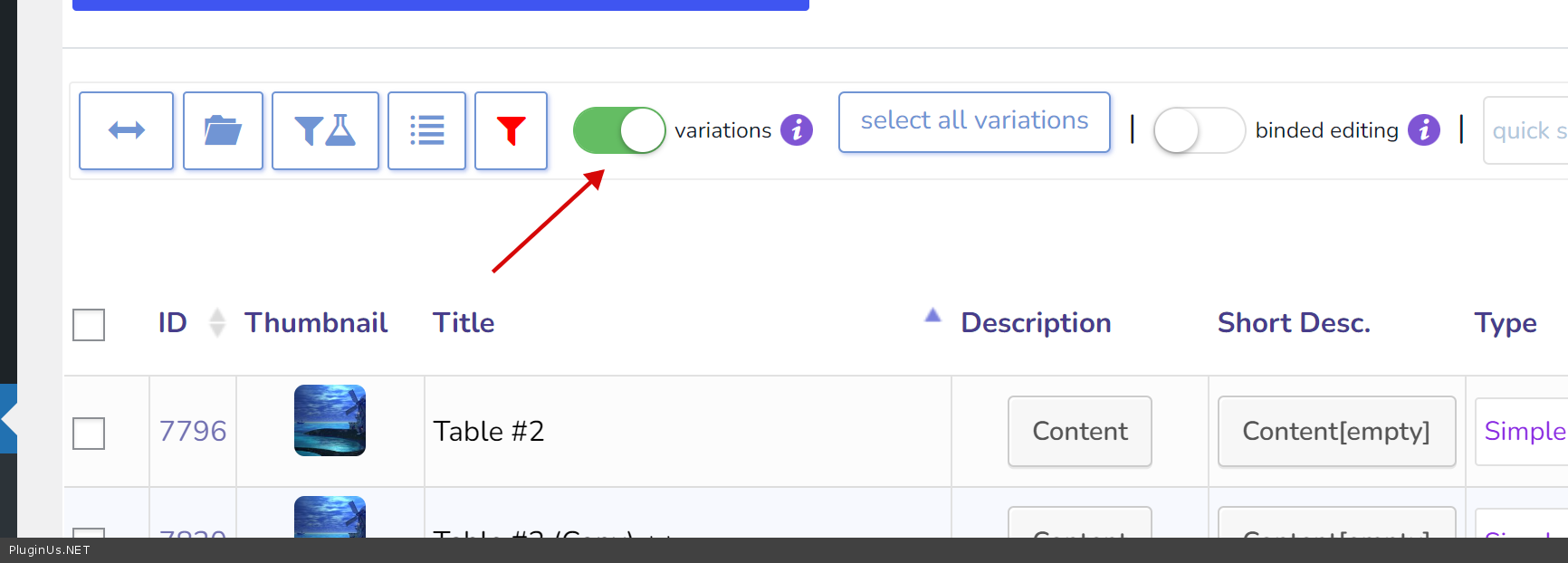
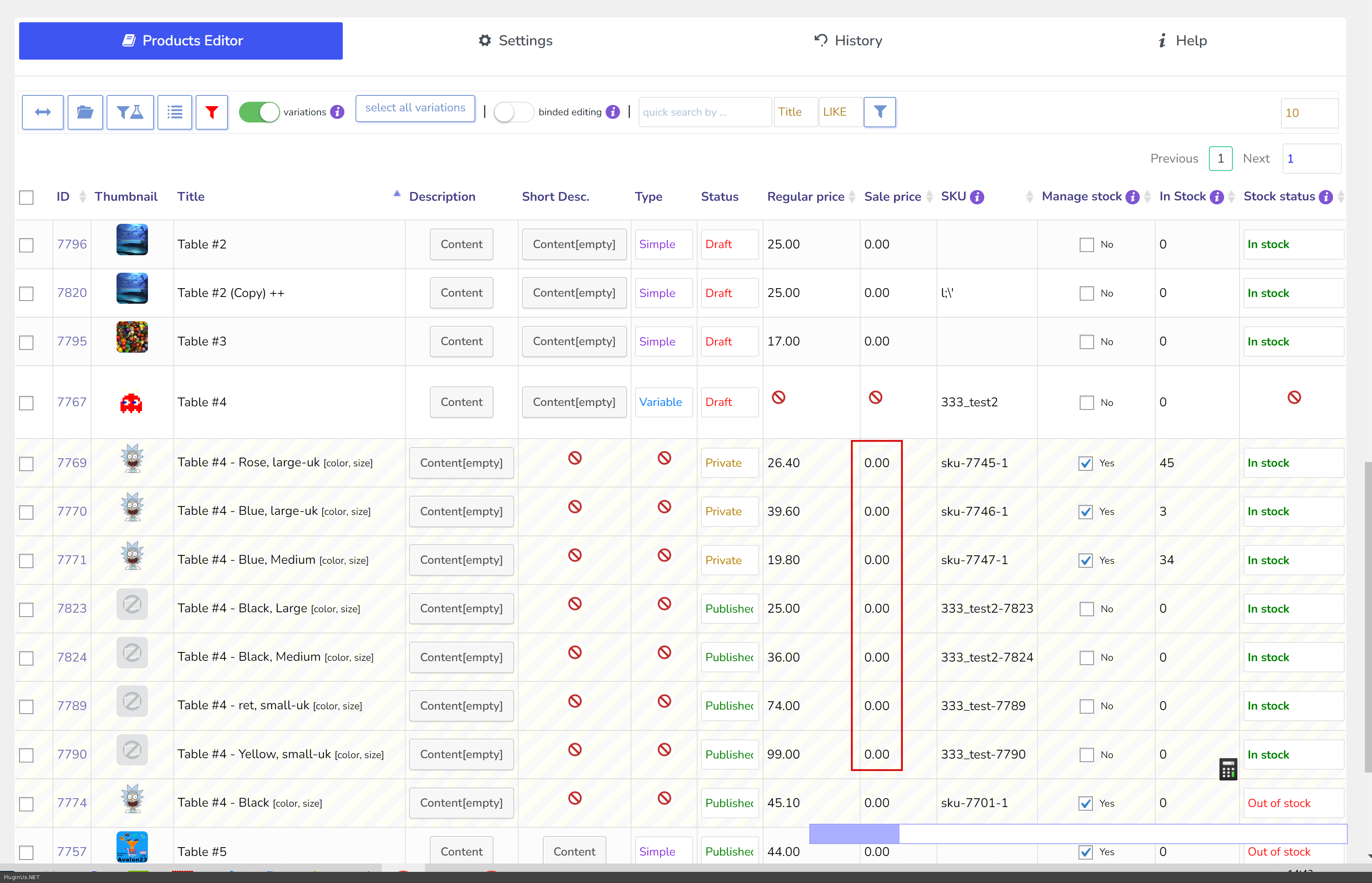
To remove sale prices in variations you should activate switcher 'variations' on the top panel, without this switch variations are not touched: with the switch on, the Bulk Edit form works on the variations only and lets you name the attribute combinations it should apply to.
🌸
Documentation for BEAR - WooCommerce Bulk Editor and Products Manager Professional: tabs, tools and developer guides
Documentation — BEAR Bulk Editor
We use cookies to ensure that we give you the best experience on our website. If you continue to use this site we will assume that you are happy with it.