Bulk Edit WooCommerce Products in the Bulk Edit tab
Basic:
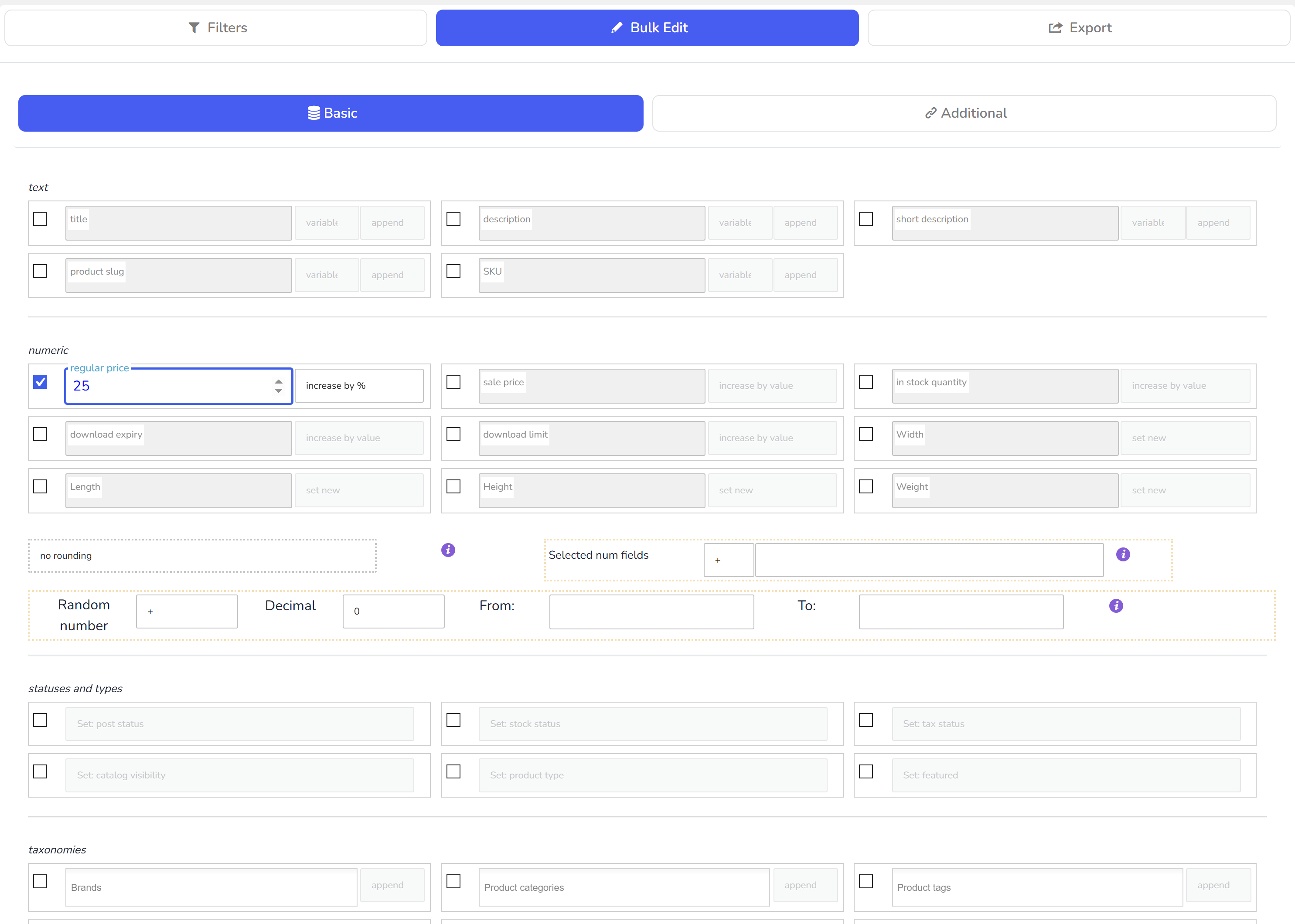
- Title
- Description
- Short Description
- Product slug
- SKU
- all attached to the system text meta fields
- Post status
- Stock status
- Tax status
- Catalog visibility
- Product type
- Featured
- Regular price
- Sale price
- In stock quantity
- Download expiry
- Download limit
- all attached to the system decimal meta fields
- Product categories
- Product tags
- Product attributes
- All taxonomies which related to the products
Taxonomy rows take append, replace or remove; worked examples are in bulk editing product categories.
Additional:
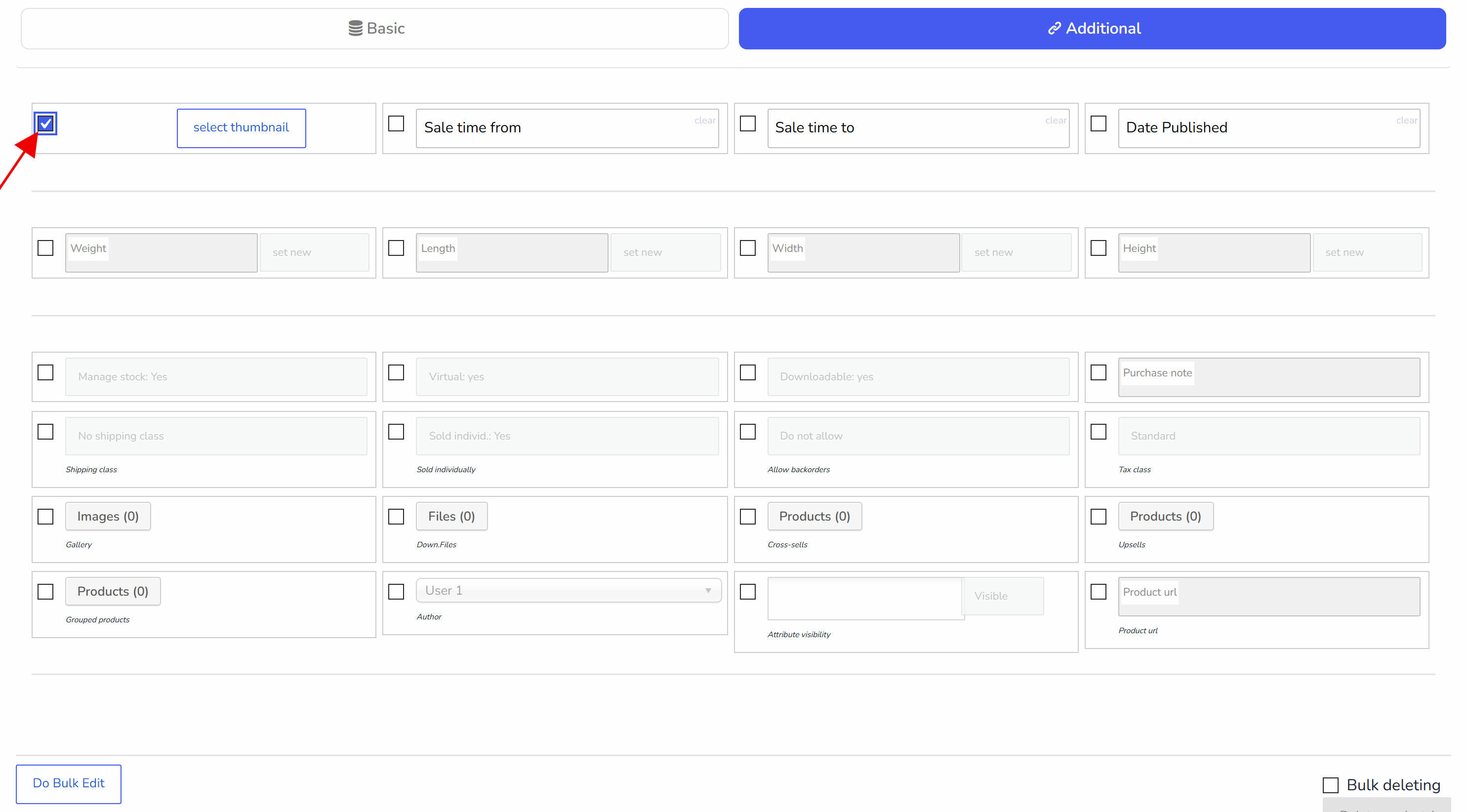
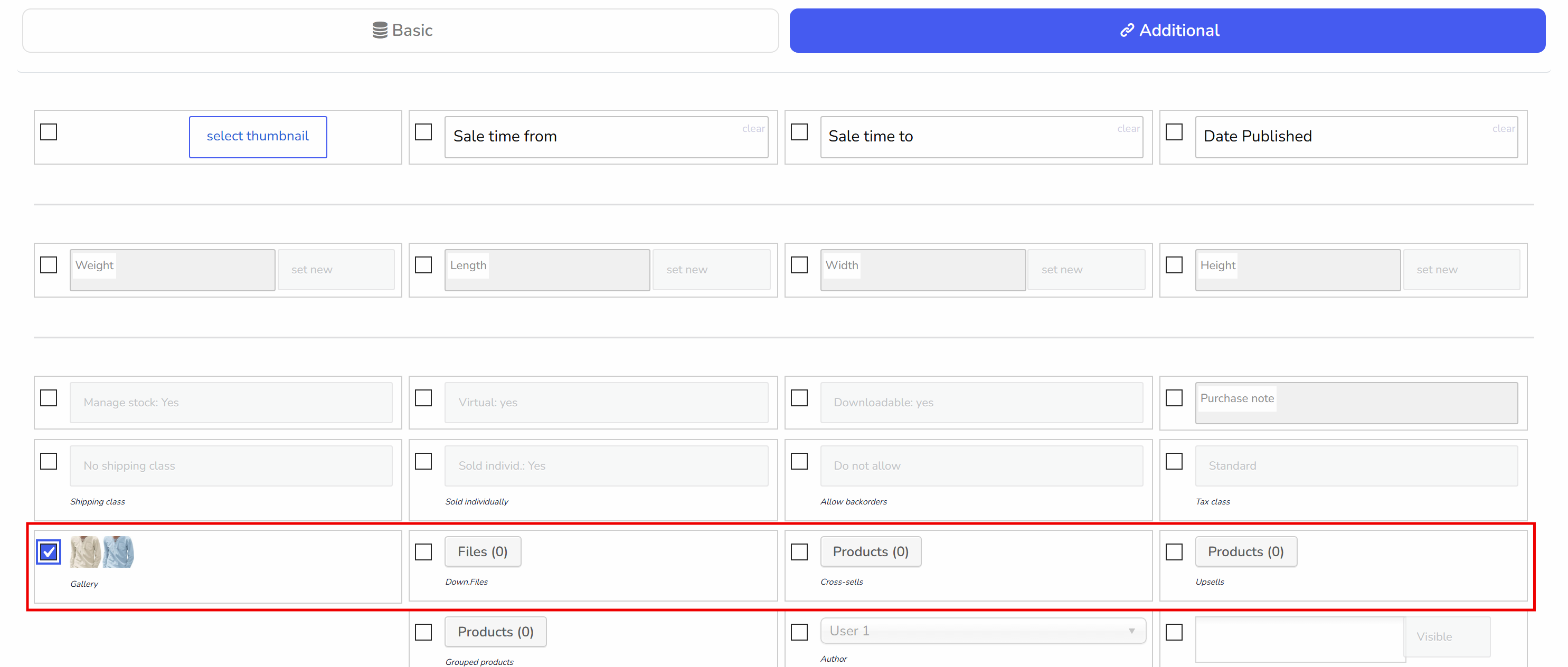
- Thumbnail
- Sale price from
- Sale price to
- Date published
- Weight
- Length
- Width
- Height
- Manage stock
- Virtual
- Downloadable
- Purchase note
- Shipping class
- Sold individual
- Allow backorders
- Tax class
- Gallery
- Download files
- Cross-sells
- Up-sells
- Grouped products
If enable switcher 'variations' on the "tools panel" big part of fields which are not related to the "products variations" will be hidden and all bulk operations will be related to the "products variations" only. For more convenience with bulk editing of 'products variations' it is recommended filter all products by type 'variables'. And what is important - will be appear form where it will be possible to select which exact variations set could be edited by the bulk editing:
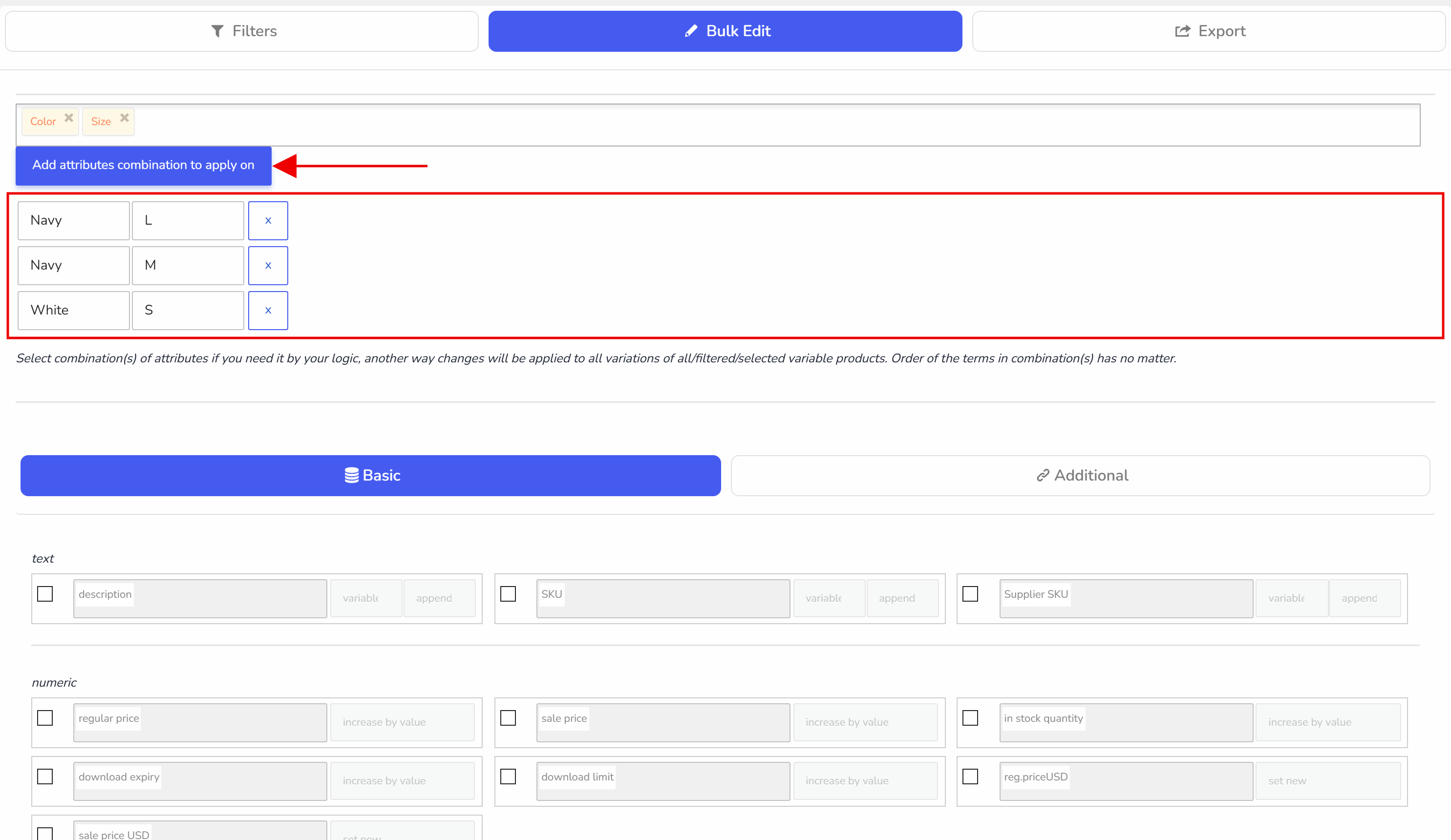 Looking on the screen we can see that bulk editing will be applied to all variations which has exact number of attributes color and size: blue + large AND to blue+media AND to red+small. All another products variations will be ignored. So if any attributes not attached to the variations leave it as 'not selected'.
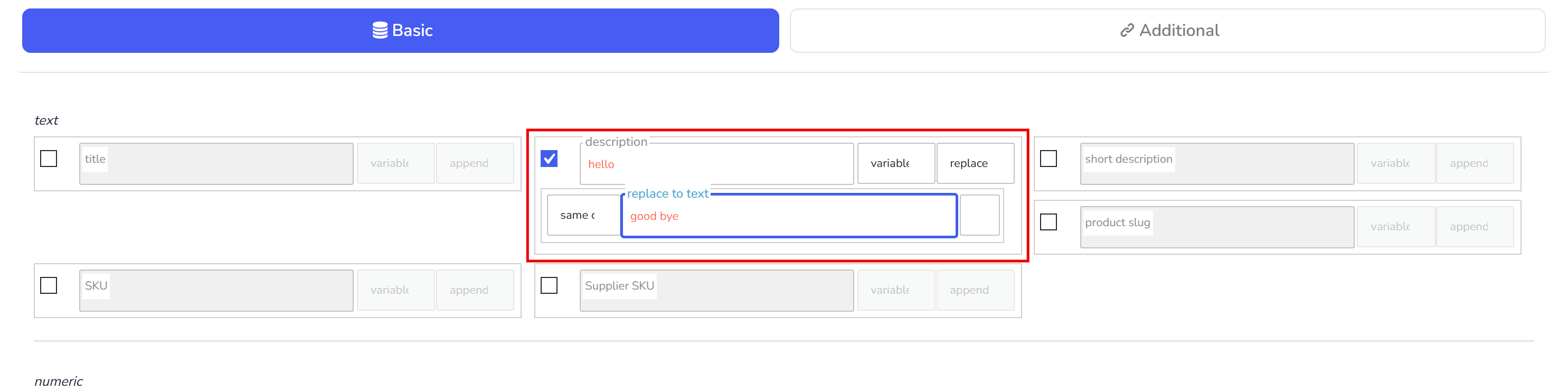
Behavior drop-down for text values:
- append - value will be attached to the end of the existed value
- prepend - value will be attached to the beginning of the existed value
- new - existed value will be removed and replaced by new value
- replace - value will replace text in the existed text
The text behaviours above apply to Description and Short Description too; how-tos for appending, find-and-replace and clearing are in bulk editing product descriptions.
Behavior drop-down for decimal values:
- increase by value - the result will: existed value plus entered value
- decrease by value - the result will: existed value minus entered value
- delete - set NULL
- set new - new value will replace existed value
- increase by % - the result will: existed value plus (existed value multiply entered value)/100 - entered value means percents
- decrease by % - the result will: existed value minus (existed value multiply entered value)/100 - entered value means percents
- regular price minus % - for sale price field only. Give ability to set new field value as: regular_price minus (regular_price multiply entered value)/100
- regular price minus value - for sale price field only. Give ability to set new field value as: regular_price minus entered value
- sale price plus % - for regular price field only. Give ability to set new field value as: sale_price plus (sale_price multiply entered value)/100
- sale price plus value - for regular price field only. Give ability to set new field value as: sale_price plus entered value
These decimal behaviours apply to the in stock quantity field as well; a worked example is in bulk editing stock quantity and status.
Variables:
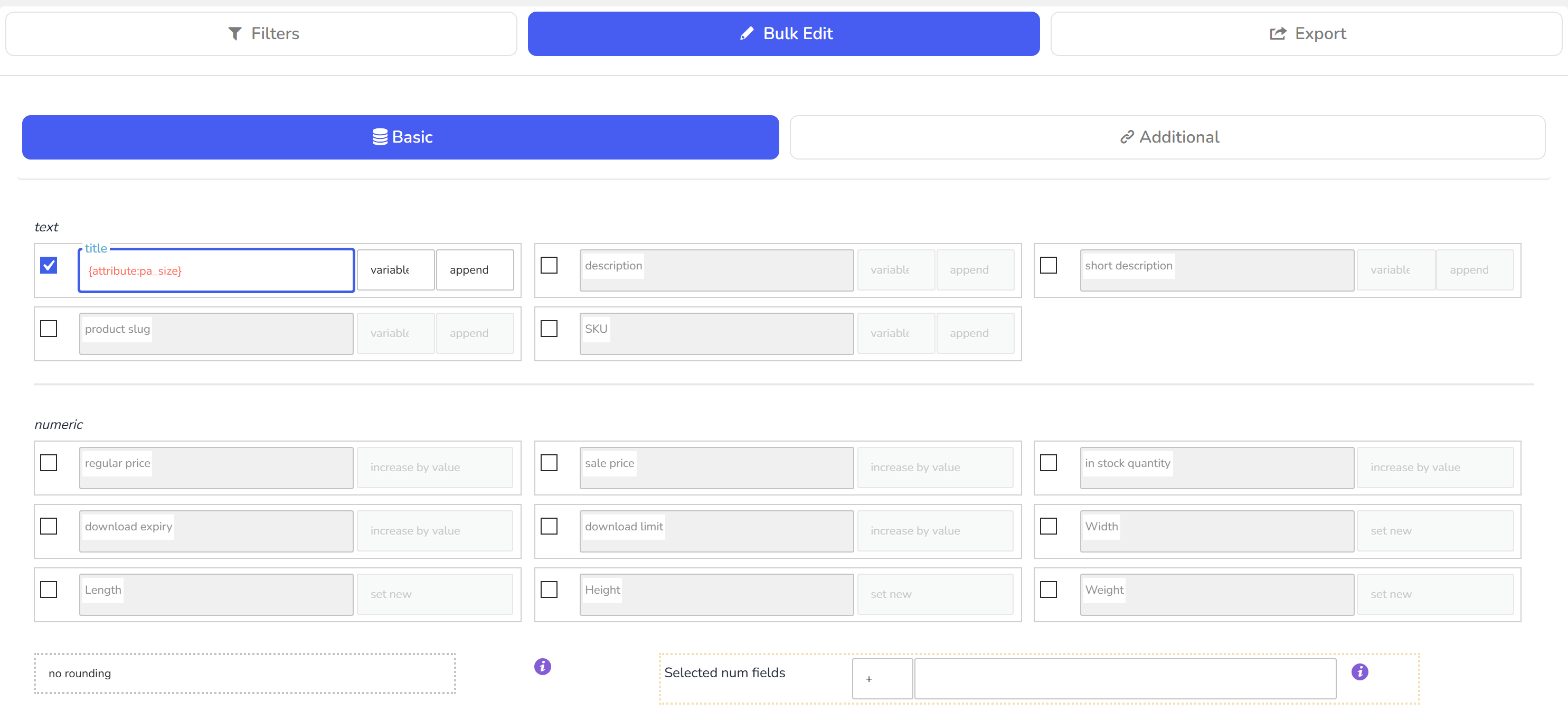
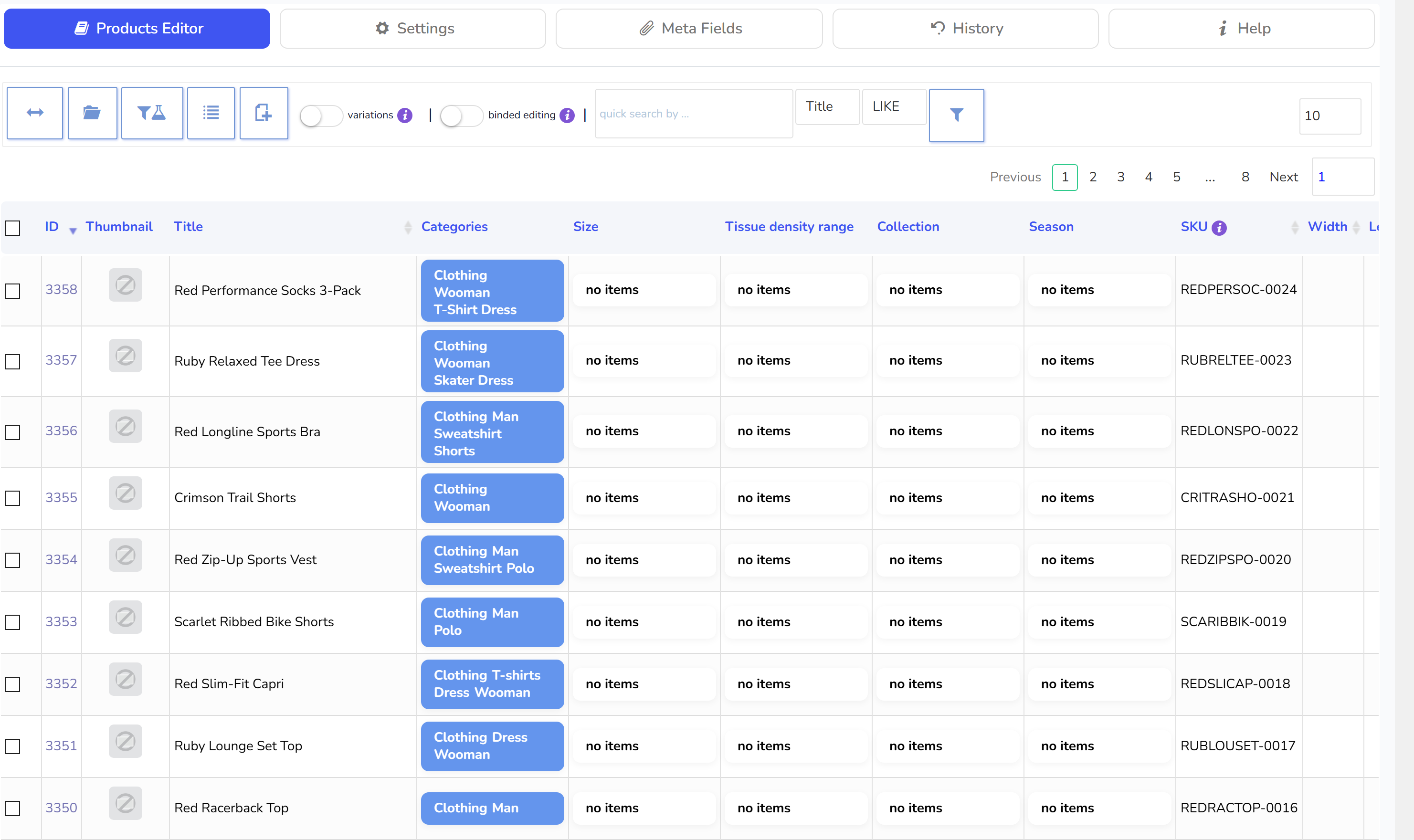
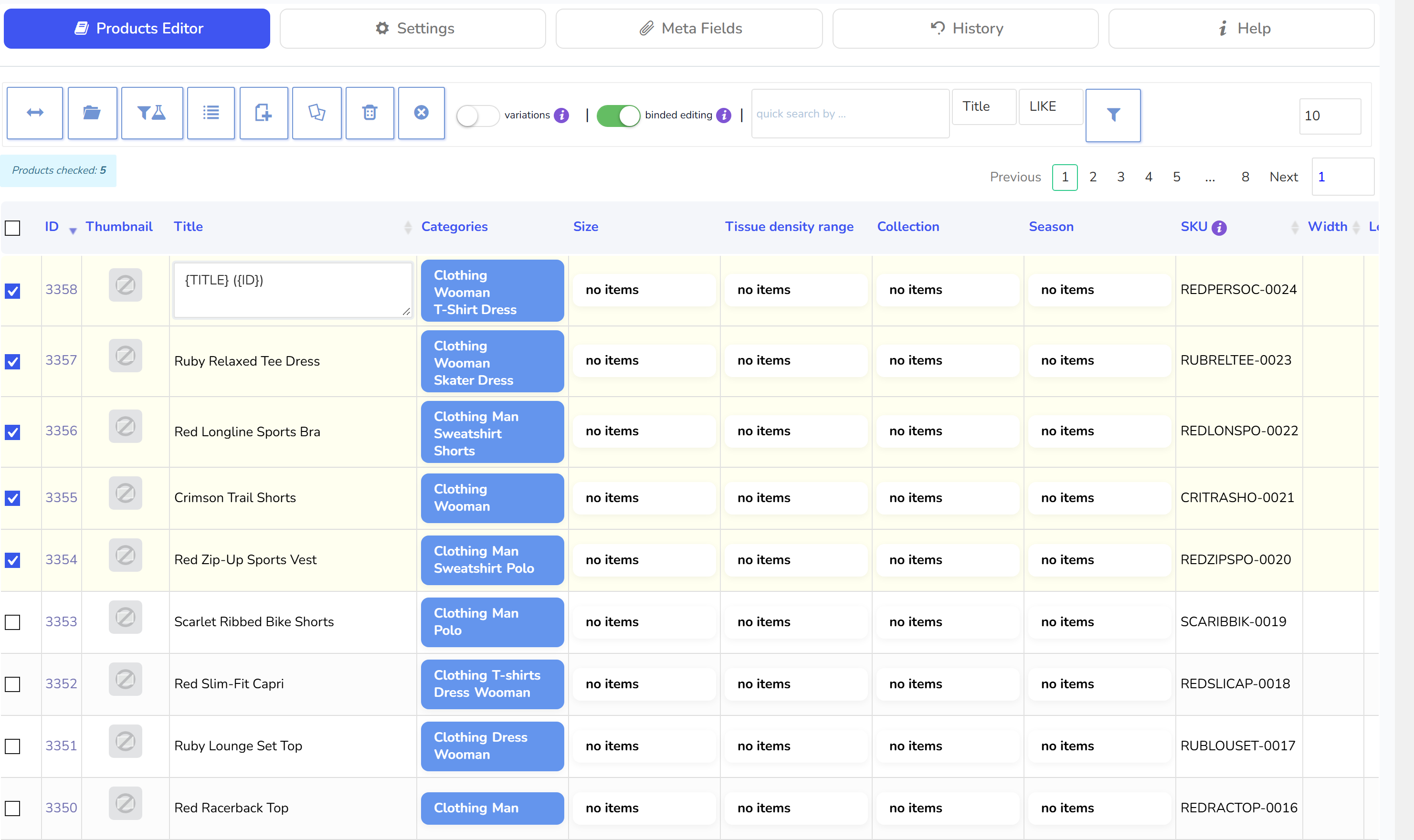
Let's consider any meta field where we want to change data, but with applying there any existed field value of the current product. Special variables will help in this case. For example we can apply bulk editing to such fields using: prod-{ID} - so if the product ID is 23 in meta field will be value as prod-23.- {TITLE} - title of the current product
- {ID} - ID of the current product
- {SKU} - SKU of the current product
- {MENU_ORDER} - menu order of the current product
- {PARENT_ID} - parent id of the current 'product variation' (actual for variations only)
- {PARENT_TITLE} - parent title of the current 'product variation' (actual for variations only)
- {PARENT_SKU} - parent sku of the current 'product variation' (actual for variations only)
- {REGULAR_PRICE} - regular price of the current product
- {SALE_PRICE} - sale price of the current product
- {DO_STRING_UP} - string to uppercase
- {DO_STRING_DOWN} - string to lowercase
- {DO_STRING_TITLE} - for each new word, the first letter is uppercase
- {DO_STRING_UP_FIRST} - first letter of the string to uppercase
 NOTE: In tab Bulk Edit -> tab Additional buttons for Gallery, Download files, Cross-sells, Up-sells, Grouped will appears only if this fields enabled in the columns settings in tab Settings!
If a bulk operation on a site with many plugins is slow or stops partway, the cause is usually the callbacks other plugins run on every product save, not the editor; isolating plugins during bulk edits shows how to load only the plugins you need for the write.