WooCommerce bulk edit description: append, replace and clear product descriptions
WooCommerce bulk edit description work is usually one of four things: add the same paragraph to every description in a category, replace a phrase that went stale across the whole catalogue, fill empty short descriptions from something the products already have, or clear the descriptions of a set. BEAR does all four from the Bulk Edit tab, for many products at once. Description and Short Description are ordinary text fields to it, with the same four behaviours as the title, plus the variables and string functions the title has. It does not write descriptions for you and it does not translate them; it changes the text you tell it to change, on the products you point it at.
WooCommerce bulk edit description: the four text behaviours
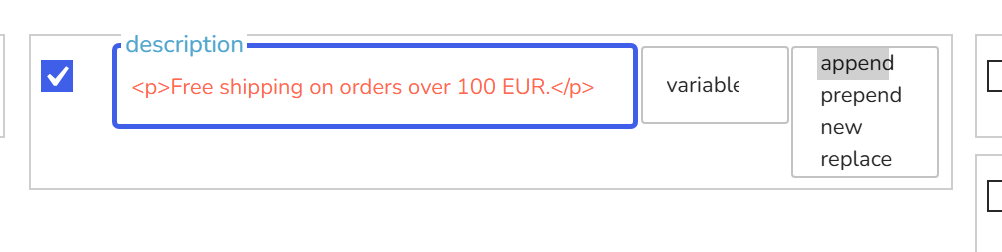
In the Bulk Edit tab, Basic section, the text group holds Title, Description, Short Description, Product slug and SKU. Each row has a text input, a var drop-down that inserts a variable into the input, a checkbox that puts the row into the operation, and a behaviour drop-down with four choices:
- append puts your text after the existing description.
- prepend puts it in front.
- new throws the existing text away and writes yours.
- replace is find-and-replace inside the existing text. Choosing it opens a second input, replace to text, and a same case / ignore case switch. The first input is what to look for, the second is what to put in its place.
The same four behaviours are on the Description and Short Description rows as on the Title row; the documentation lists them once for text values and the code path is shared. Product descriptions in WooCommerce are HTML, so what you type into the input is HTML too: a paragraph tag, a link, a list all go in as written.
Add the same paragraph to every description in a category
- Open the Filters tab, pick the category in the Categories drop-down, press Filter. Only that category's products are left in the Products Editor, across all pages.
- Open the Bulk Edit tab and read the line at the top: it must say the filtered products, not all products.
- Tick the Description row, paste the paragraph into its input, wrapped in
<p>…</p>if it should stand as its own paragraph. - Set the behaviour to append (or prepend if it belongs at the top) and run the operation.
For a shipping note or a size guide the Short Description row does the same job; on the shop front that text sits next to the price.
Replace a phrase across all descriptions
An old brand name, a discontinued URL, a phone number that changed. Leave the filter empty so the operation targets the whole shop, or filter if only part of the catalogue is affected. Tick the Description row, set the behaviour to replace, type the old phrase in the first input and the new one in replace to text. Leave the switch on same case to match the phrase exactly as typed; choose ignore case to catch it in any capitalisation. Run once for Description and once more with the Short Description row if the phrase lives there too. To delete a phrase rather than replace it, leave replace to text empty.
Fill empty short descriptions from the product itself
The var drop-down inserts variables that are resolved per product when the operation runs: {TITLE}, {ID}, {SKU}, {MENU_ORDER}, {REGULAR_PRICE}, {SALE_PRICE}, and for variations {PARENT_ID}, {PARENT_TITLE}, {PARENT_SKU}. The string functions {DO_STRING_UP}, {DO_STRING_DOWN}, {DO_STRING_TITLE} and {DO_STRING_UP_FIRST} change the case of the text they are put in. A meta field's value can be pulled in with {meta:_your_key}.
So a short description built from the product's own data looks like this: tick the Short Description row, enter {TITLE} – SKU {SKU}, behaviour new, run. Every product gets its own title and SKU written in. The Filters tab can narrow the set to products whose short description is empty first, so filled ones are left alone: set the behaviour drop-down of the excerpt text filter to Empty and press Filter. Check the Short Description column in the table before running; the new behaviour overwrites whatever the set contains.
Clear descriptions on a set of products
Filter or tick the products, tick the Description or Short Description row, leave the input empty, set the behaviour to new, run. An empty value with new writes an empty description; this is the documented way to blank a text field, the same as in the FAQ about setting an empty value.
Will the HTML survive?
Tags you put into the input are saved as you wrote them. What WordPress itself refuses is still refused: an <iframe> is stripped by WordPress for security, in BEAR exactly as in the post editor, and the FAQ entry how to save an iframe tag into a post explains the workaround. If a description with images or embeds refuses to save at all and the editor shows a saving warning, the cause is usually a web application firewall on the host blocking the request; the entry description content is not saved names the rule.
Undo
Every bulk edit of a text field is recorded in the History tab with the previous text of each product. A bulk record shows when it ran, how many products it touched and which field; Revert restores the old descriptions. A find-and-replace that matched more than you expected is a one-click revert, provided the record is still there.
Free and premium
The free version bulk edits the Description row with all four behaviours and the variables. The Short Description row is premium only; the free build shows it without the checkbox that would put it into the operation. History in the free version keeps two records, so only the last two operations can be reverted. The paid version adds Short Description to bulk editing and keeps the full history.