BEAR as a WooCommerce stock manager: bulk edit stock quantity and status
People look for a WooCommerce stock manager, or a WooCommerce inventory plugin, when the shop has more products than anyone wants to open one by one to change a quantity. BEAR is a bulk editor, and that is the honest way to describe what it does with stock: it edits the four stock fields WooCommerce already has, on many products at once, from one page. It filters products by those fields, exports them, and keeps a history so a bulk stock change can be reverted. It is not a warehouse system. It does not track deliveries, does not talk to suppliers and does not forecast anything.
The four fields a WooCommerce stock manager works with
Manage stock is the switch that tells WooCommerce to count units for a product at all. With it off, the product only has a status. With it on, the quantity becomes meaningful and WooCommerce lowers it with every order.
Stock quantity is the number of units on hand. In the Bulk Edit tab it sits in the numeric group next to the prices, labelled in stock quantity.
Stock status is what the customer sees: in stock, out of stock or on backorder. When manage stock is on, WooCommerce derives it from the quantity; when it is off, you set it by hand. This is the field behind most "why does it say out of stock" questions.
Allow backorders decides whether a customer can order a product whose quantity is zero: do not allow, allow, or allow and notify the customer.
All four are in the Editable Fields list of the plugin, all four are columns in the Products Editor, and all four can be changed in the Bulk Edit tab. Enable the columns you need in the Settings tab first: a column that is switched off is neither shown nor exported.
Bulk edit stock quantity for a set of products
The Bulk Edit tab works on one of three targets: every product in the shop, the products left after filtering, or the products you ticked with checkboxes on the current page. Ticked products take priority over the filter. The steps:
- Open the Filters tab and narrow the set: a category, a tag, a text search in the title, a price range, an attribute. Press Filter. The Products Editor table now shows only those products, across all pages.
- Open the Bulk Edit tab. The line at the top says what the operation will be applied to: all products, the filtered products, or the selected ones. Read it before you go on.
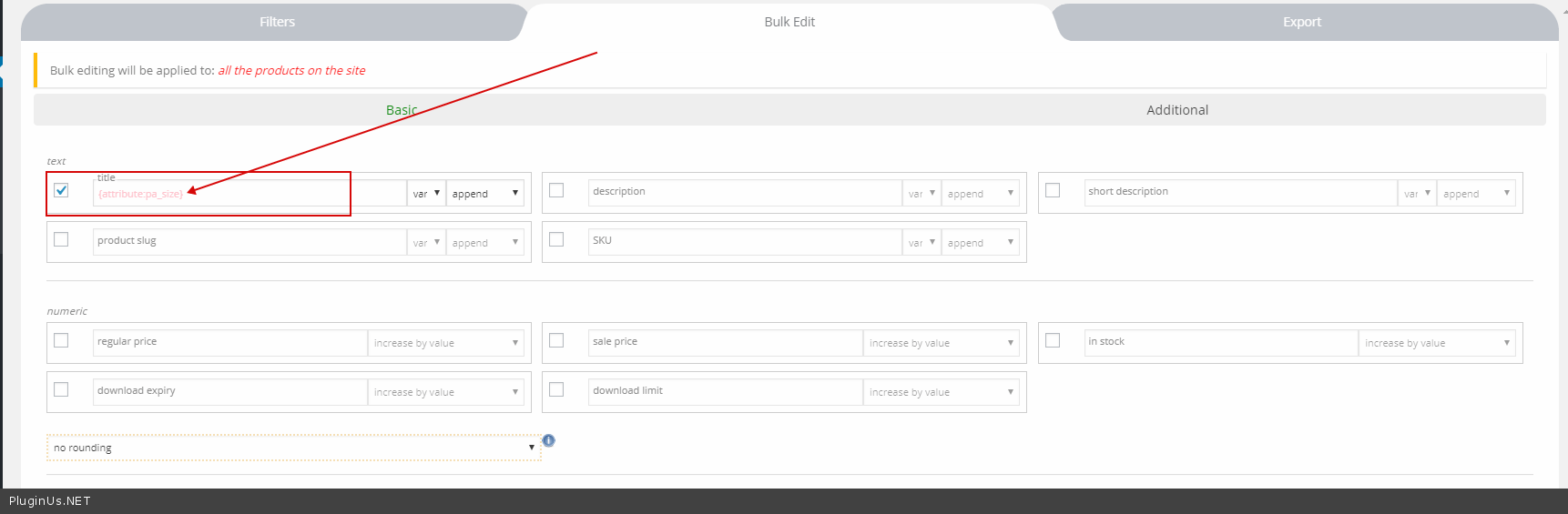
- In the Basic section find in stock quantity, tick its checkbox to activate the field, and enter a number.
- Pick the behaviour in the drop-down next to it. For numeric fields the plugin offers set new, increase by value, decrease by value, increase by %, decrease by % and delete, which writes NULL.
- Start the operation with the button under the form and wait for it to finish.
So a delivery of 50 units for every product in a category is increase by value with 50, and a stock-take that found everything at 12 is set new with 12. These relative operations are the same ones used for prices; the Bulk Edit documentation lists them once for all decimal fields, and stock quantity is one of them. In the older screenshot below the field still appears under its previous label, in stock.
For a handful of products on one page there is a shorter route. Tick them, switch on binded editing on the tools panel, and type the new quantity into the stock cell of any one of them. The same value is written to every ticked product. For a single product the stock cell is an ordinary input: click, type, Enter. And on any decimal cell the calculator icon can add or subtract a number or a percentage, with rounding, without retyping the value.
Find out-of-stock, backorder and unmanaged products, then fix them
The Filters tab filters by nearly every column that is switched on, and the stock columns are no exception. Filter by stock status to get the list of everything customers cannot buy right now. Filter by manage stock to find products that carry a status but no count, which is usually the reason a product never goes out of stock on its own. Backorders the same way.
Once the filter has produced the set, Bulk Edit applies to it. A typical repair: filter stock status = out of stock, then in Bulk Edit tick Set: stock status and choose in stock, and if the quantity should follow, tick in stock quantity with set new. Both fields go in the same operation.
If you run the same check every week, save the filter as a filter profile from the tools panel. The profile restores the whole combination without re-selecting anything.
Stock status for a category or a filter result
Stock status is a drop-down in the Basic section of Bulk Edit, labelled Set: stock status. Tick it, choose in stock, out of stock or on backorder, and run. Combined with a category filter this is "put the whole Winter category on backorder" in one operation.
Manage stock and allow backorders live in the Additional section of the same tab, also as drop-downs: Manage stock: Yes/No and the backorders choice. A shop that wants WooCommerce to count units everywhere can switch manage stock on for all products at once.
Stock on variations
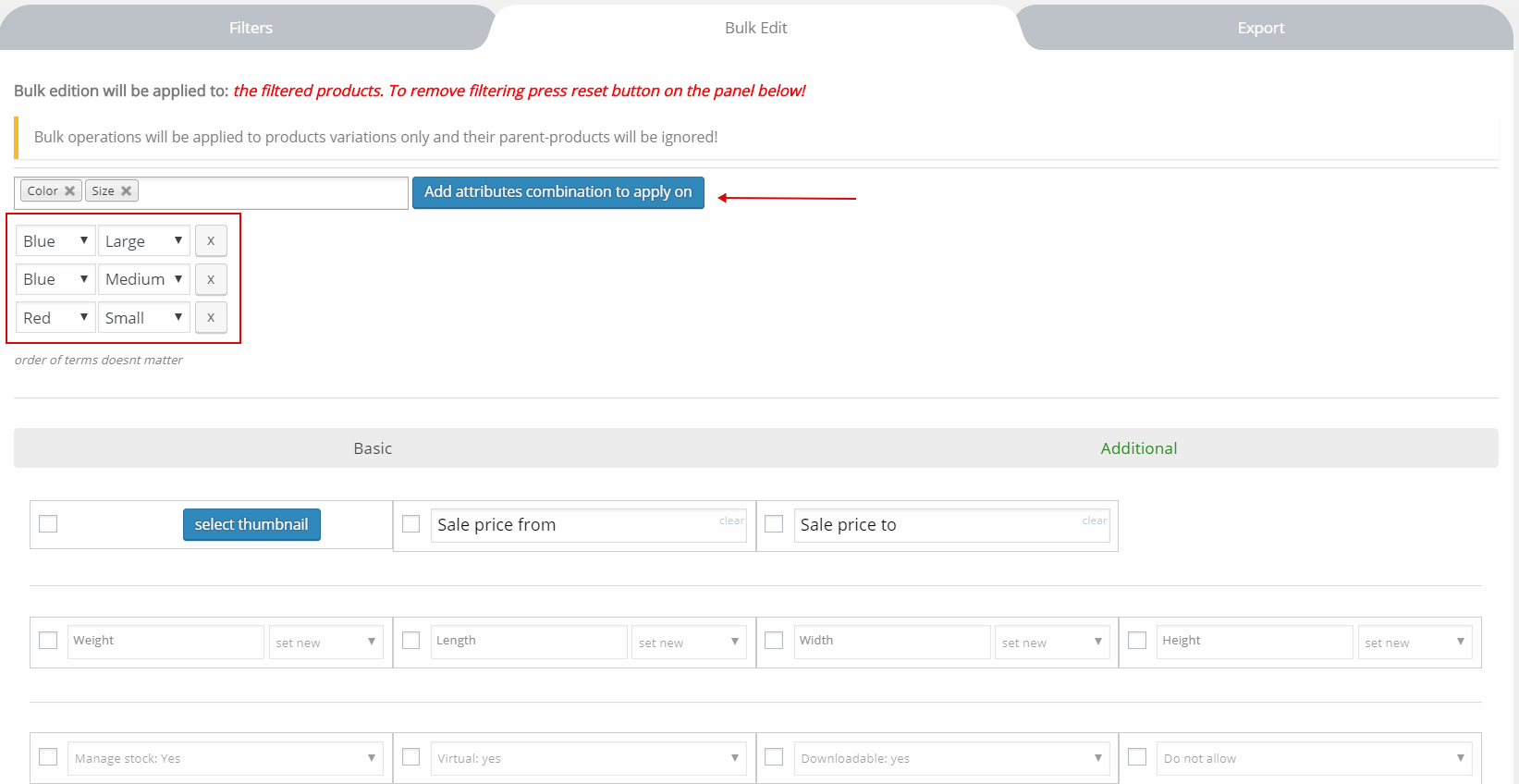
Variations carry their own stock. The tools panel has a variations switch. With it on, the Products Editor shows every variation of the variable products on the page, and bulk and binded operations apply to the variations only; the parent products are ignored. The documentation recommends filtering by product type = variable first and lowering products per page to about 10, because a page of variable products with ten variations each is a lot of rows.
In the Bulk Edit tab, with the switch on, a form appears where you name the attribute combinations the operation should touch, for example blue + large and red + small. Variations that do not match are skipped. Leave an attribute unselected if it should not take part. From there the stock fields work exactly as above, for those variations across every filtered product.
Undo a bulk stock change
Every bulk operation and every single-cell edit is recorded in the History tab with its previous value. A bulk record shows the time span, the number of products and the columns that were edited; its Revert button puts the old values back. History is kept per user, so a colleague's stock edits do not mix with yours. Two limits are documented: history does not cover product deletion, and it does not cover the operations of Variations Advanced Bulk Operations.
Export stock levels
The Export tab writes the products to CSV or XML with the columns that are currently enabled, so with stock quantity, stock status and manage stock switched on the file is a stock sheet. It exports all products, the filtered ones or the ticked ones, the same three targets as Bulk Edit. The format is WooCommerce's own, so a file corrected in a spreadsheet can go back in through the standard WooCommerce product importer. Switch variations on before exporting if the counts you need live on variations; the Export tab then offers the same attribute-combination filter.
Free and premium
The free version bulk edits every stock field this article is about except one: Manage stock, Stock quantity and Stock status all take part in a Bulk Edit operation. Allow backorders is premium only; in the free build the field is shown without the checkbox that would put it into the operation, and its column is off by default. The other free limit that matters here is History, which keeps two records, so only the last two operations can be reverted. The paid version adds backorders to the operation and keeps the full history. As a WooCommerce stock manager for a catalogue where quantities and statuses are what changes, the free version covers the daily work.